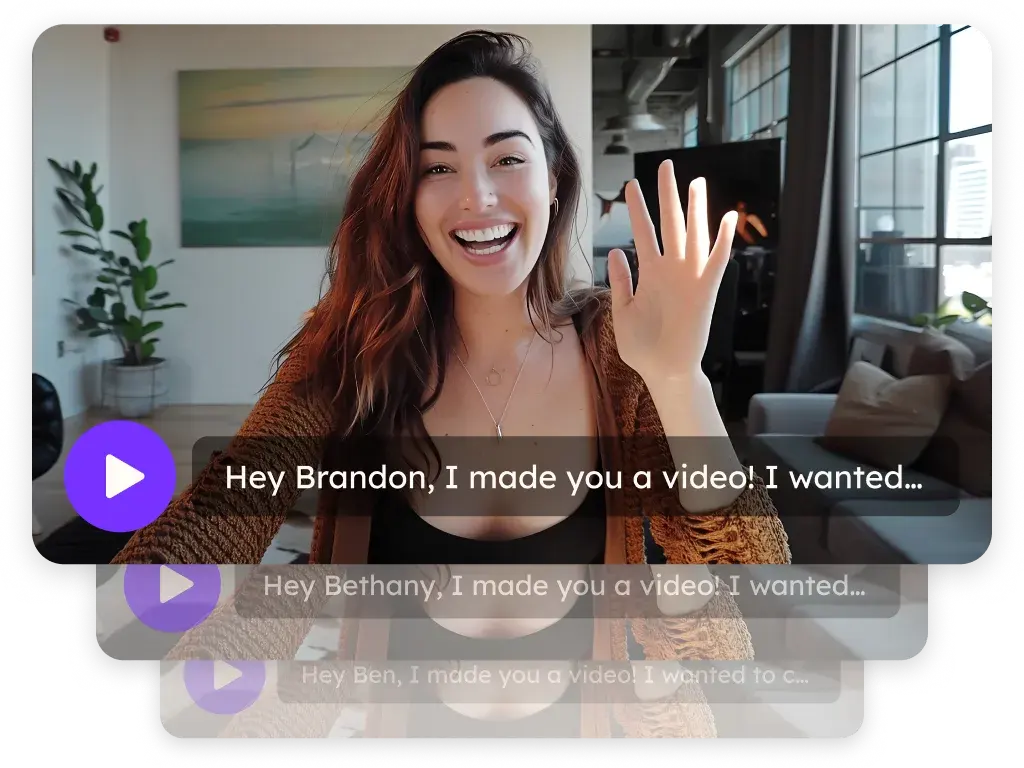
Send AI personalized videos in Mixmax emails and sequences
You can paste a Sendspark video into a Mixmax template or sequence, and you can embed your Mixmax calendar next to the video so viewers book right after watching. Sendspark is an AI personalized video platform for B2B sales and marketing teams. For AI personalized videos, Mixmax matches each recipient to their own video by email address.
 SOC 2 Type II
- Read reviews on G2


Sendspark and Mixmax at a glance
- Integration type
- Share snippet and calendar embed
- How data moves
- You paste the video's HTML into a Mixmax template, email or sequence, and add your Mixmax calendar link to the video page. Nothing syncs back to Mixmax.
- What you need
- A Mixmax account (web app or the Mixmax Gmail extension) and your Mixmax calendar link.
- Setup guides
- On Mixmax's side
- About Mixmax
Your sequence gets opened, and then nothing happens
Prospects open the email, skim it and move on, because it could've gone to anyone. Even when one's interested, booking a call means another reply and another wait.
How to use Sendspark with Mixmax
- 1
Generate your AI videos
Build a Dynamic Video campaign and generate the videos before you copy anything.
- 2
Copy the Mixmax code
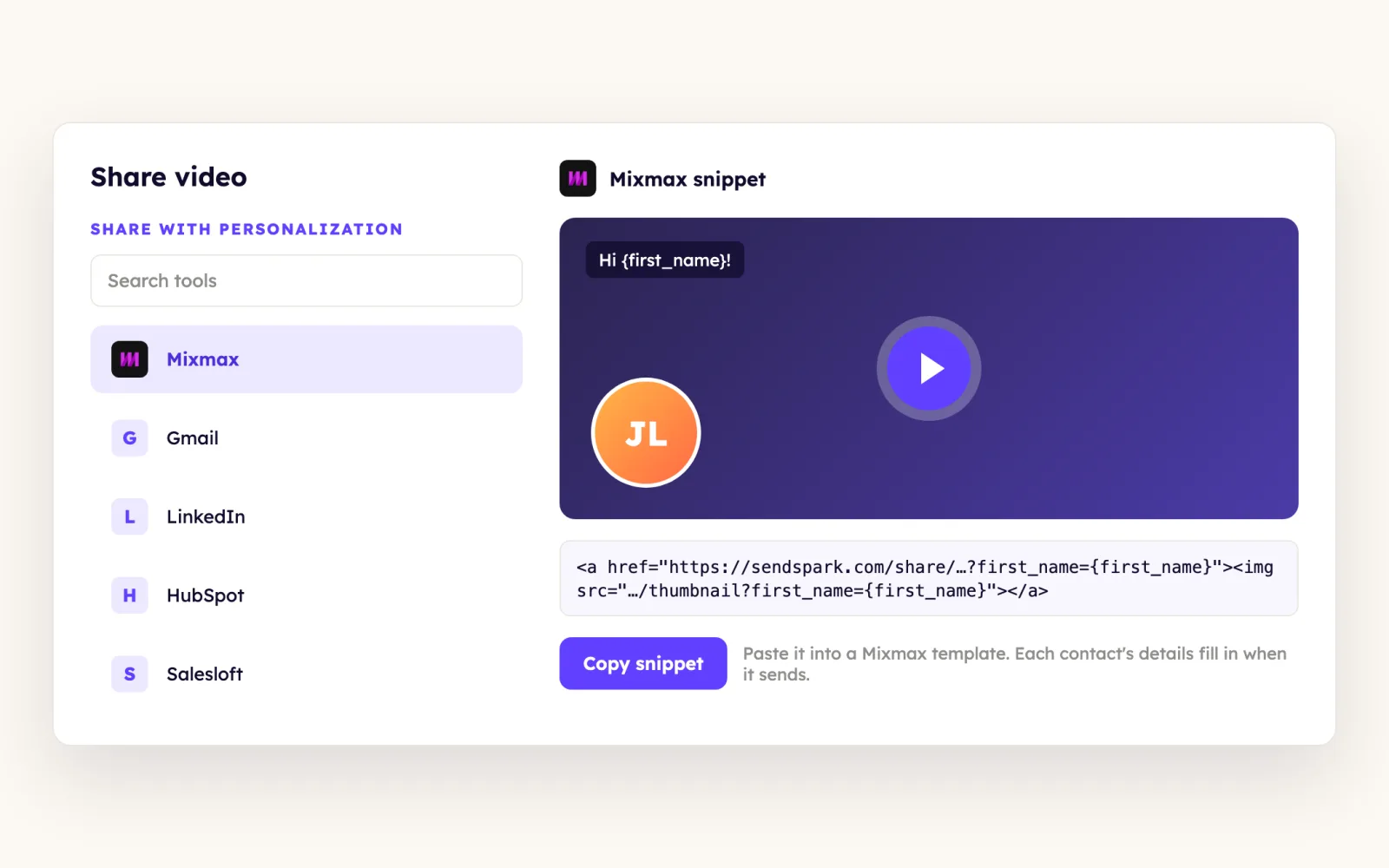
In the campaign, click Share Campaign and select Mixmax. That copies HTML that shows a clickable thumbnail.
- 3
Paste it into your sequence or template
Place your cursor in the Mixmax sequence step or email and paste. It shows as an empty placeholder in the editor; hover it and choose Best Fit to size it.
- 4
Send yourself a test
Send the email to yourself first. Once sent, the placeholder becomes the video thumbnail, linked to your landing page.
What teams do with Sendspark and Mixmax
The prospect watches and books on your Mixmax calendar without leaving the page
On the video, scroll to Calendar, toggle it On, pick Mixmax as the provider, and paste your Mixmax calendar link (not embed code). The booking calendar shows beside the video in the preview right away.
Read the guideOne template carries a personalized video into every Gmail send
For a recorded video, add placeholders to the header, message and thumbnail, click Share Video, choose Mixmax, and paste into a new Mixmax template. Use that template in Mixmax or in Gmail through the Mixmax extension.
Read the guideWhat Mixmax data personalizes each video
- AI videos: Mixmax uses the recipient's email to pick their video, so contact emails must match your campaign data.
- Recorded videos: placeholders pull first name, company name and job title into the thumbnail, header and message.
- The template snippet pastes large; drag the thumbnail's bottom-right corner inward to resize it.
- The landing page keeps your buttons, calendar and other elements.
Where you see who watched from Mixmax
Views, watch time, CTA clicks and likes are tracked in Sendspark, not in Mixmax.
Explore Video AnalyticsSendspark and Mixmax: frequently asked questions
Does Sendspark integrate with Mixmax?
Yes. You paste your video into Mixmax templates, emails and sequences, and you can embed your Mixmax calendar on the video page. There's no data sync.
Why is the video blank in the Mixmax editor?
That's expected for AI videos. The pasted code shows as a placeholder and turns into each recipient's thumbnail once the email sends, so send yourself a test first.
Do I paste my Mixmax calendar embed code?
No, paste the calendar link. Sendspark builds the embed from the link.
Updated



Make your next outreach personal.
Record one video and let Sendspark do the rest.