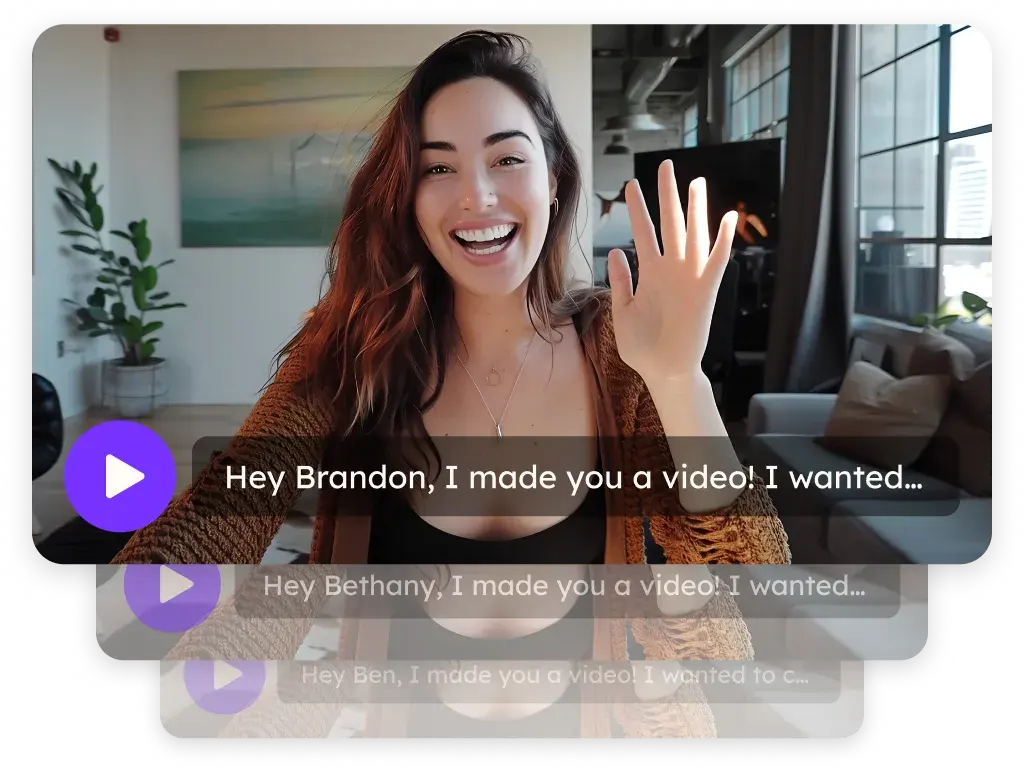
Sendspark Salesforce integration for personalized video
Sendspark lets Salesforce users record videos from the Salesforce email composer, send personalized videos in list emails, and track video page visits in Salesforce reports and dashboards. It's an advanced integration for sales teams on Growth and above. Sendspark is an AI personalized video platform for B2B sales and marketing teams.
 SOC 2 Type II
- Read reviews on G2


Sendspark and Salesforce at a glance
- Integration type
- Instant integration, import source, CRM tracking and share links
- How data moves
- Prospects can be imported from Salesforce; Sendspark video page visits are sent to Salesforce for reports and dashboards (CRM tracking), and webhooks can push video events into Salesforce records matched by email.
- Plan
- Growth and above
- What you need
- The Sendspark Chrome extension for the composer button, your Salesforce Business Unit Account ID for tracking, and a Salesforce webhook URL (Apex or a no-code webhook app) if you want event data on records.
- Setup guides
- On Salesforce's side
- About Salesforce
Your CRM can't tell you which emails got watched
Reps send links and attachments from the CRM, but there's no record of who opened the video or how far they got, so pipeline reviews run on opinion. And personal videos stay rare because each one means recording from scratch for a single contact.
How to use Sendspark with Salesforce
- 1
Connect Salesforce tracking
In Sendspark, go to Settings, Integrations, click Connect next to Salesforce, enter your Salesforce Business Unit Account ID and save. The row then shows Enabled and its button changes to Edit.

- 2
Record from the Salesforce composer
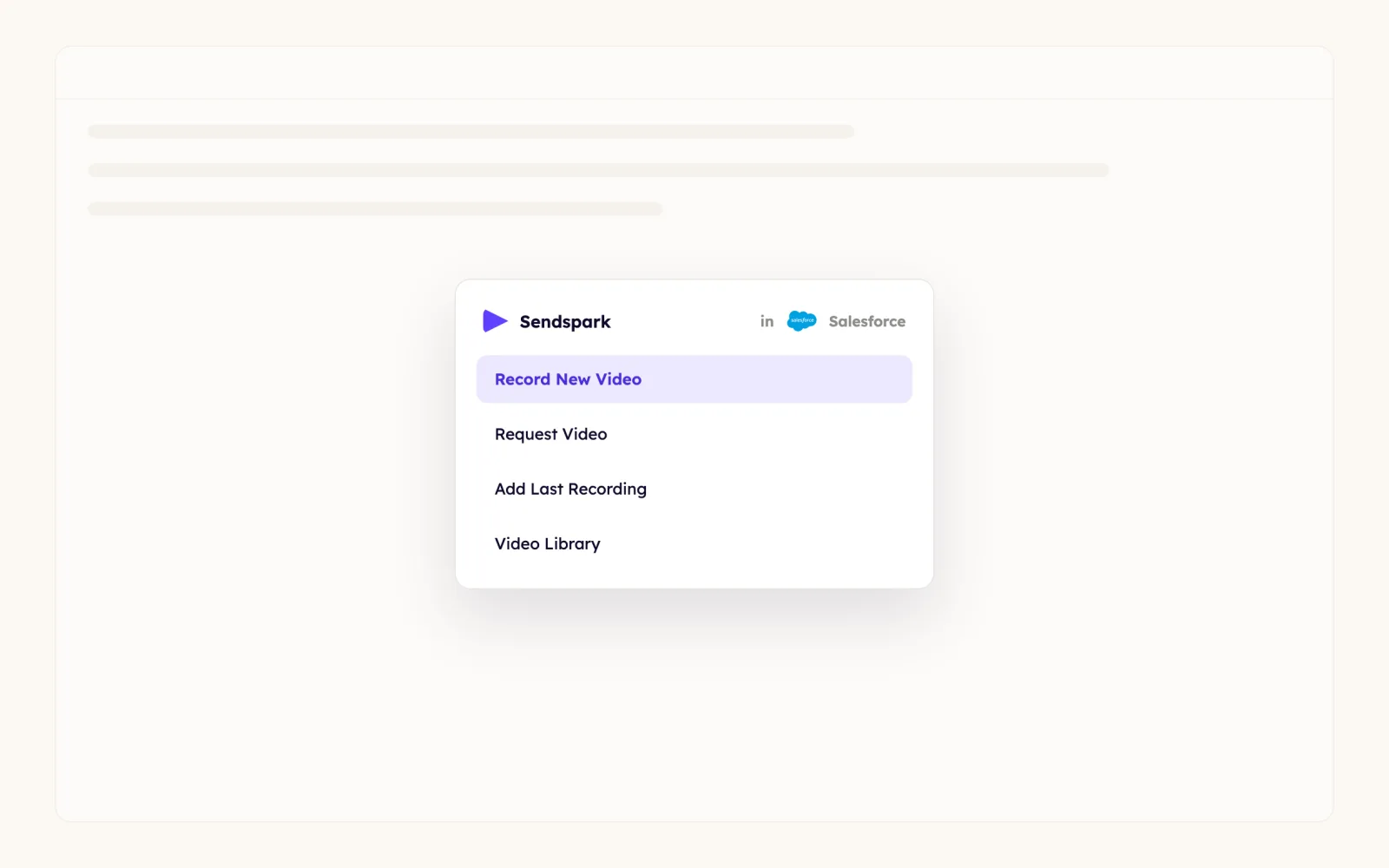
With the Chrome extension installed, a Sendspark icon appears at the bottom of every Salesforce compose email. Record a new video (camera-only works best for outreach), add your last recording or pick one from your library, then click Insert Video.
- 3
Personalize the video page
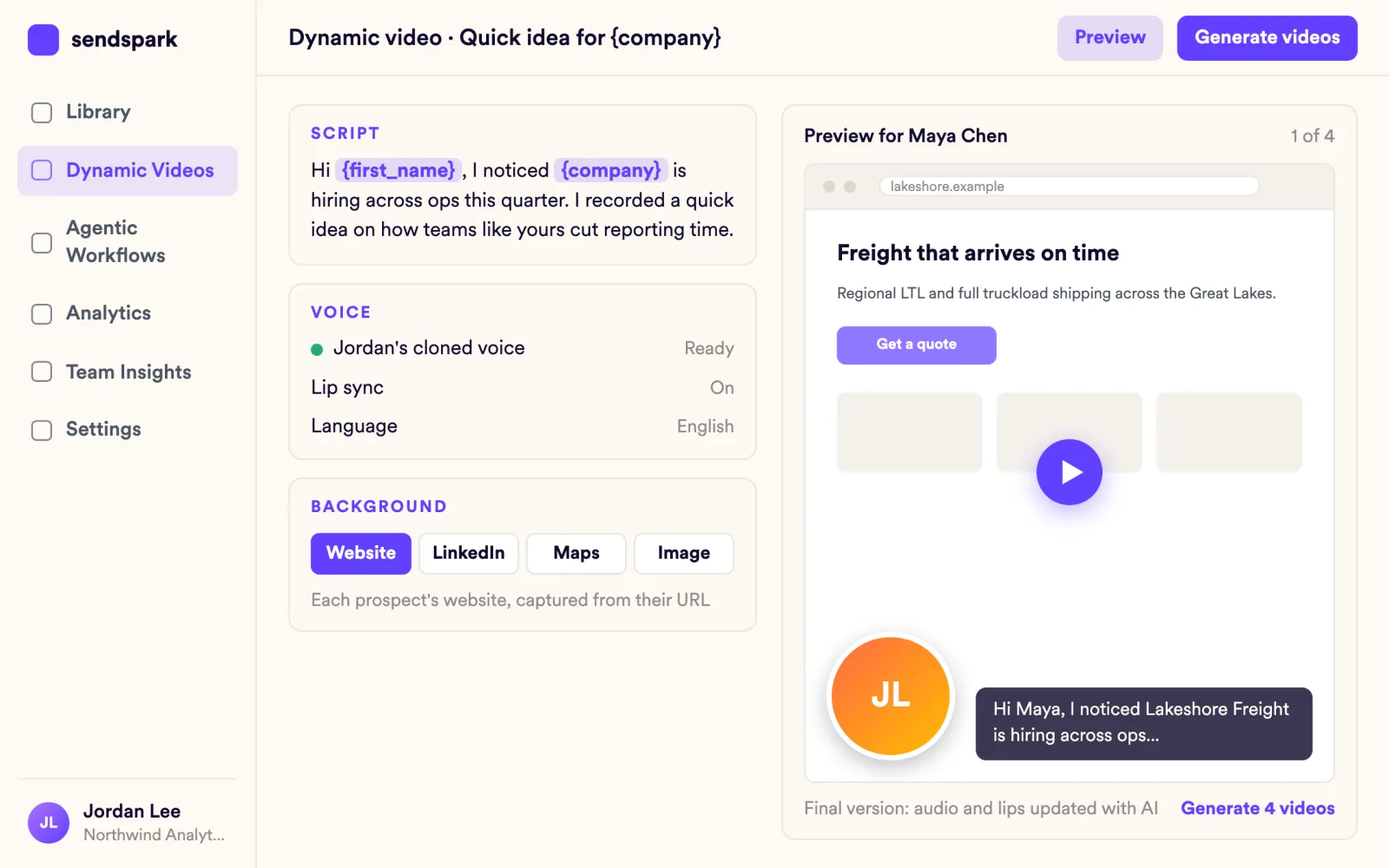
Open the video's edit section and, under Customize, use the personalize dropdown in the header, message or call-to-action to add first name, company name or job title. Set fallback text for each one.
- 4
Add the Salesforce share shortcuts
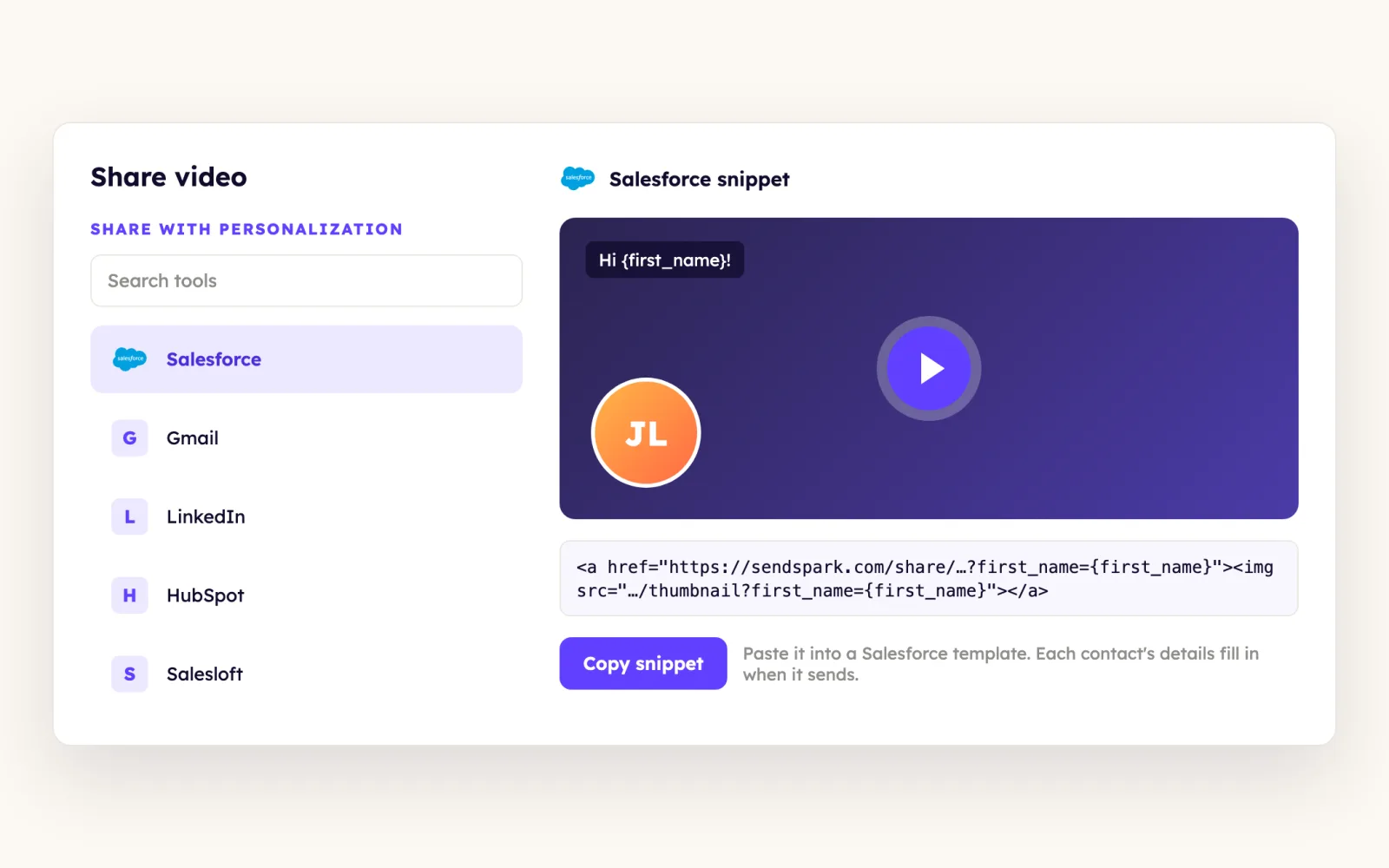
Click Share Video, then Edit/Add under the shortcuts, find Salesforce and enable the Image URL and Video URL options. Save changes so both appear as shortcuts.
- 5
Send it as a Salesforce list email
Open the contact, click Send List Email, then the image icon, Web Image, and paste the Image URL. Select the image, click the chain link icon and paste the Salesforce Video URL. Use a real email, not a template.
- 6
Send video events to Salesforce with webhooks
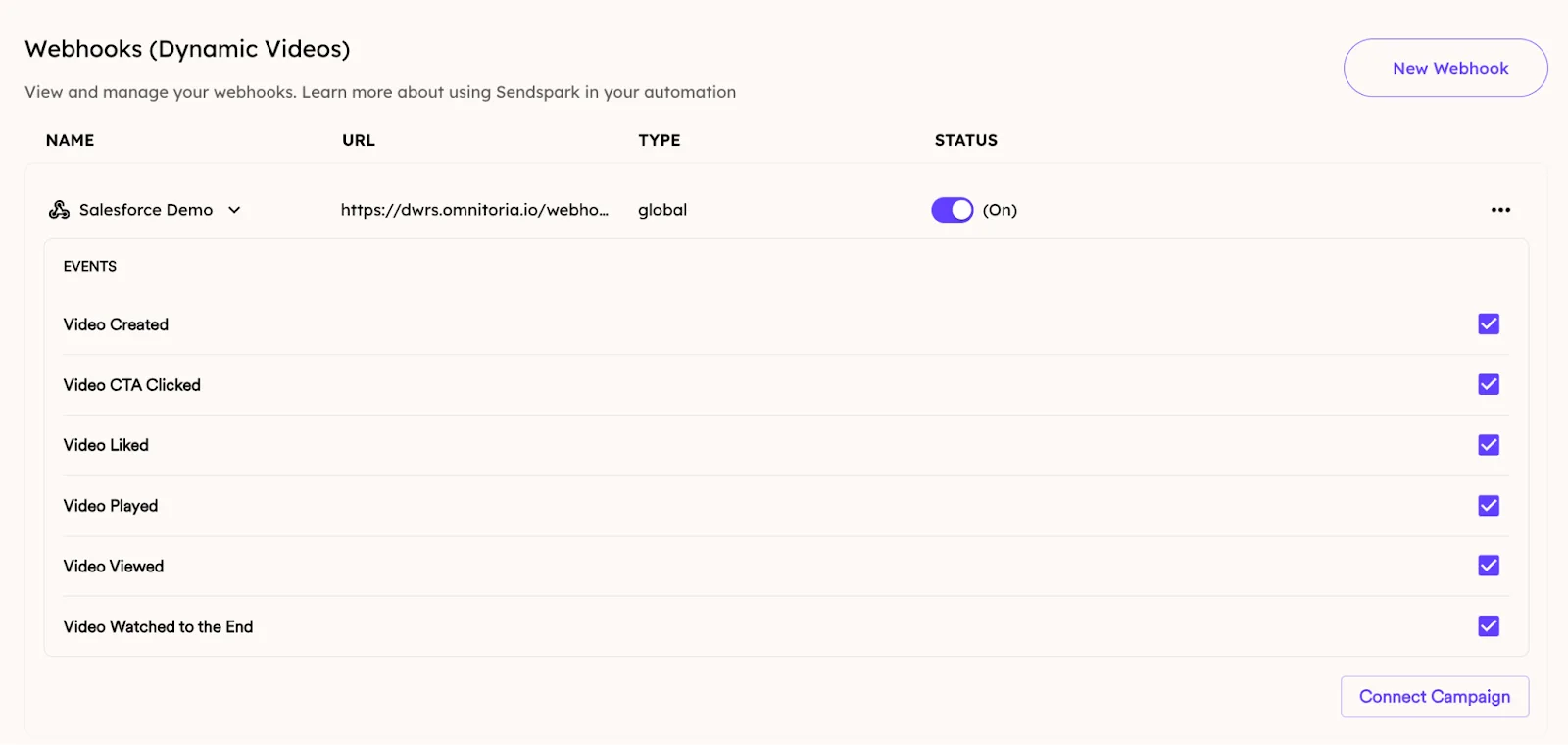
In Sendspark, open Settings, Webhooks, add a name and your Salesforce webhook URL, keep it global and tick the events you want, such as Video Played, Video Watched to the End and Video CTA Clicked.
What teams do with Sendspark and Salesforce
Send dynamic videos to a Salesforce list
In your dynamic video campaign, click Share Campaign and type Salesforce. Insert the thumbnail link as a Web Image in a Send List Email, then link it to the Salesforce Video link. Previews show the original background, but each recipient gets their own version.
Read the guideLog video engagement on Salesforce records
Create an inbound webhook in Salesforce with Apex or the Declarative Webhooks app, set the request body to JSON and map Sendspark's payload to the object you choose. Use it to update records or trigger Flows when someone watches or clicks.
Read the guideFix a missing Company merge field
If Salesforce doesn't expose Company on the contact, create a custom Company text field under Setup, Edit Object, Fields & Relationships, add it to the Contact layout, then swap its merge code into the company part of your Sendspark video link.
Read the guideWhat Salesforce data personalizes each video
- Three variables: first name, company name and job title, in the video page header, message and call-to-action, each with fallback text such as 'Hey there'.
- The Salesforce Title field maps to Sendspark's job title variable, so fill it in on the contact.
- Company may need a custom Company text field on the Contact layout before it can be merged.
- Dynamic videos pick each contact's background from their Salesforce record data; test emails show the original background.
- Instant-integration videos are inserted as an animated GIF; landing page text and CTA come from your template, logo and colors from your workspace settings.
Where you see who watched from Salesforce
Sendspark analytics show who viewed, how much they watched, CTA clicks and likes, and Team Insights is on every plan. In Salesforce, the tracking integration records Sendspark video page visits against leads, contacts and user records for reports and dashboards, and webhooks can write events such as Video Viewed and Video CTA Clicked to the object you map, matched by the viewer's email.
Explore Video AnalyticsSendspark and Salesforce: frequently asked questions
Does Sendspark integrate with Salesforce?
Yes. You can record and insert videos from the Salesforce composer with the Chrome extension, send personalized videos in Send List Email using Sendspark's Salesforce Image URL and Video URL, track video page visits in Salesforce, and push video events to records with webhooks.
Which plan do I need for Salesforce?
Salesforce is an advanced integration on Growth and above. Webhooks and the API are also Growth and above.
Can I see who watched my video in Salesforce?
Yes. Connect tracking with your Business Unit Account ID to see video page visits in reports and dashboards. For event-level data on records, send Sendspark webhooks to Salesforce; matching relies on the viewer's email being known.
Why is the Company variable missing in Salesforce?
Some orgs don't expose a Company field on a single contact. Create a custom Company text field, add it to the Contact page layout, fill it in, and use its merge code in your video link.
Can I paste the Sendspark links into a Salesforce email template?
No. Apply the Image URL and Video URL to an actual email, not a template.
Updated
 HubSpotInstant integration, HubSpot app (workflow actions and CRM tracking), share snippet, Agentic Workflows connection and calendar embedExplore HubSpot
 OutreachInstant integration, share snippet, Agentic Workflows connection and calendar embedExplore Outreach
 SalesloftShare snippet and calendar embedExplore Salesloft
Make your next outreach personal.
Record one video and let Sendspark do the rest.