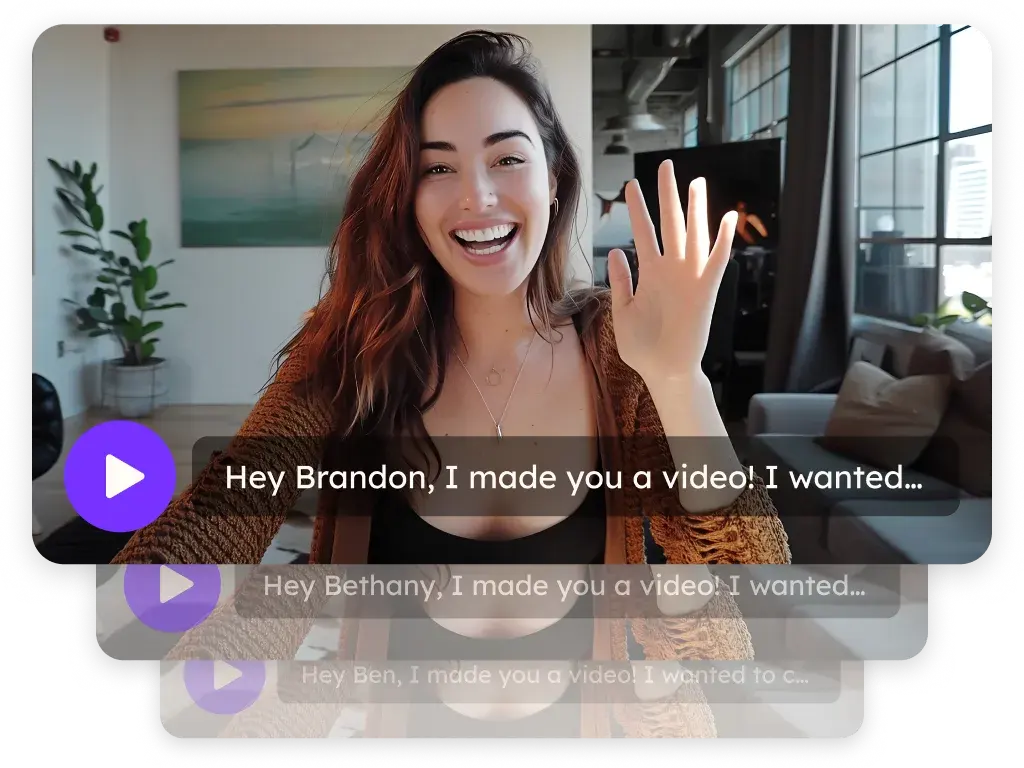
Send AI personalized videos in Gong Engage flows
Gong Engage doesn't connect to Sendspark directly, so a Sendspark automated workflow saves each prospect's video email snippet to a field in your CRM, and you insert that field into your Gong Engage flow emails. Sendspark is an AI personalized video platform for B2B sales and marketing teams. It works with Salesforce, HubSpot, Zoho, HighLevel and Close, as long as the CRM is synced with Gong.
 SOC 2 Type II
- Read reviews on G2


Sendspark and Gong Engage at a glance
- Integration type
- Automated workflow plus CRM field (snippet)
- How data moves
- Sendspark writes the Email Embed HTML for each new video into a CRM field; Gong reads that field from your CRM and you insert it into flow emails. Views stay in Sendspark.
- Plan
- Automated Workflows: Growth and above.
- What you need
- A CRM synced with Gong (Salesforce, HubSpot, Zoho, HighLevel or Close), a custom field to hold the snippet, and a Dynamic Video campaign.
- On Gong Engage's side
- About Gong Engage
Your flows reach the right accounts with the same email everyone else sends
Flows are good at timing and terrible at sounding personal. Adding a video per prospect by hand breaks the automation you set up flows for.
How to use Sendspark with Gong Engage
- 1
Build the Dynamic Video campaign
Create the campaign and leave placeholders where the viewer's first name or other fields go.
- 2
Trigger on each new video
Start an automated workflow with the Sendspark New Video Generated trigger. All Campaigns fires once per new video across your workspace.

- 3
Find the contact, then update it
Add your CRM's Find Contact step, then an update step. Without the lookup there's no record to write to.
- 4
Map Email Embed HTML to a CRM field
In the update step, map Sendspark's Email Embed HTML output into your custom field, such as spark_video_1.

- 5
Insert the field in your flow email
In the Gong Engage flow step, insert the CRM field where the video goes. Contacts added to the flow see their own video in the email.
What teams do with Sendspark and Gong Engage
Different flows carry different videos at the same time
Instead of All Campaigns, trigger from one Dynamic Video campaign and map it to its own CRM field. Each flow then inserts the field for the campaign it's built around.
Read the guideWhat Gong Engage data personalizes each video
- The snippet is Sendspark's Email Embed HTML: a video thumbnail that links to the prospect's landing page.
- AI variables come from the Dynamic Video campaign; Gong's own fields, like First Name, still work in the email text.
- One CRM field holds one video at a time; use a field per campaign if you need several.
Where you see who watched from Gong Engage
Views, watch time, CTA clicks and likes are tracked in Sendspark. Nothing is reported back into Gong.
Explore Video AnalyticsSendspark and Gong Engage: frequently asked questions
Does Sendspark integrate with Gong Engage?
Not directly. A Sendspark automated workflow saves the video snippet to a CRM field, and Gong Engage reads it because your CRM is synced with Gong.
Which CRMs work for this?
Salesforce, HubSpot, Zoho, HighLevel and Close. The CRM must be synced with Gong so the field shows up in Gong Engage.
Why is the CRM field empty?
Usually the workflow has no Find Contact step between the Sendspark trigger and the update, so there's no record to write the snippet to.
Updated
 SalesforceInstant integration, import source, CRM tracking and share linksExplore Salesforce
  HubSpotInstant integration, HubSpot app (workflow actions and CRM tracking), share snippet, Agentic Workflows connection and calendar embedExplore HubSpot
  CloseInstant integration and share snippetExplore Close
 Make your next outreach personal.
Record one video and let Sendspark do the rest.