Sendspark Intercom integration for video support replies
Sendspark's Intercom integration is an instant integration: with the Sendspark Chrome extension installed, a purple Sendspark icon appears in the Intercom composer, so you can record a video reply, or send a customer a link to record one for you, right inside the conversation. You can also embed video in Intercom emails. Sendspark is an AI personalized video platform for B2B sales and marketing teams.
 SOC 2 Type II
- Read reviews on G2


Sendspark and Intercom at a glance
- Integration type
- Instant integration (Chrome extension), video requests and email embed
- How data moves
- You insert a video or a video request link into an Intercom conversation; videos customers record upload to your Sendspark account. Nothing is written back to Intercom.
- Plan
- Agentic Workflows: Growth and above
- What you need
- The Sendspark Chrome extension in a Chrome browser
- Setup guides
- On Intercom's side
- About Intercom
Support chats drag on because nobody can see the problem
"It's broken" turns into a long back-and-forth of screenshots and guesses, and the customer gets more frustrated with every reply. Typing out a fix that would take a minute to show on screen keeps the ticket open longer than it should be.
How to use Sendspark with Intercom
- 1
Open an Intercom conversation
With the Sendspark Chrome extension installed, open a new or existing conversation. The purple Sendspark icon sits in the compose window next to Intercom's own options.
- 2
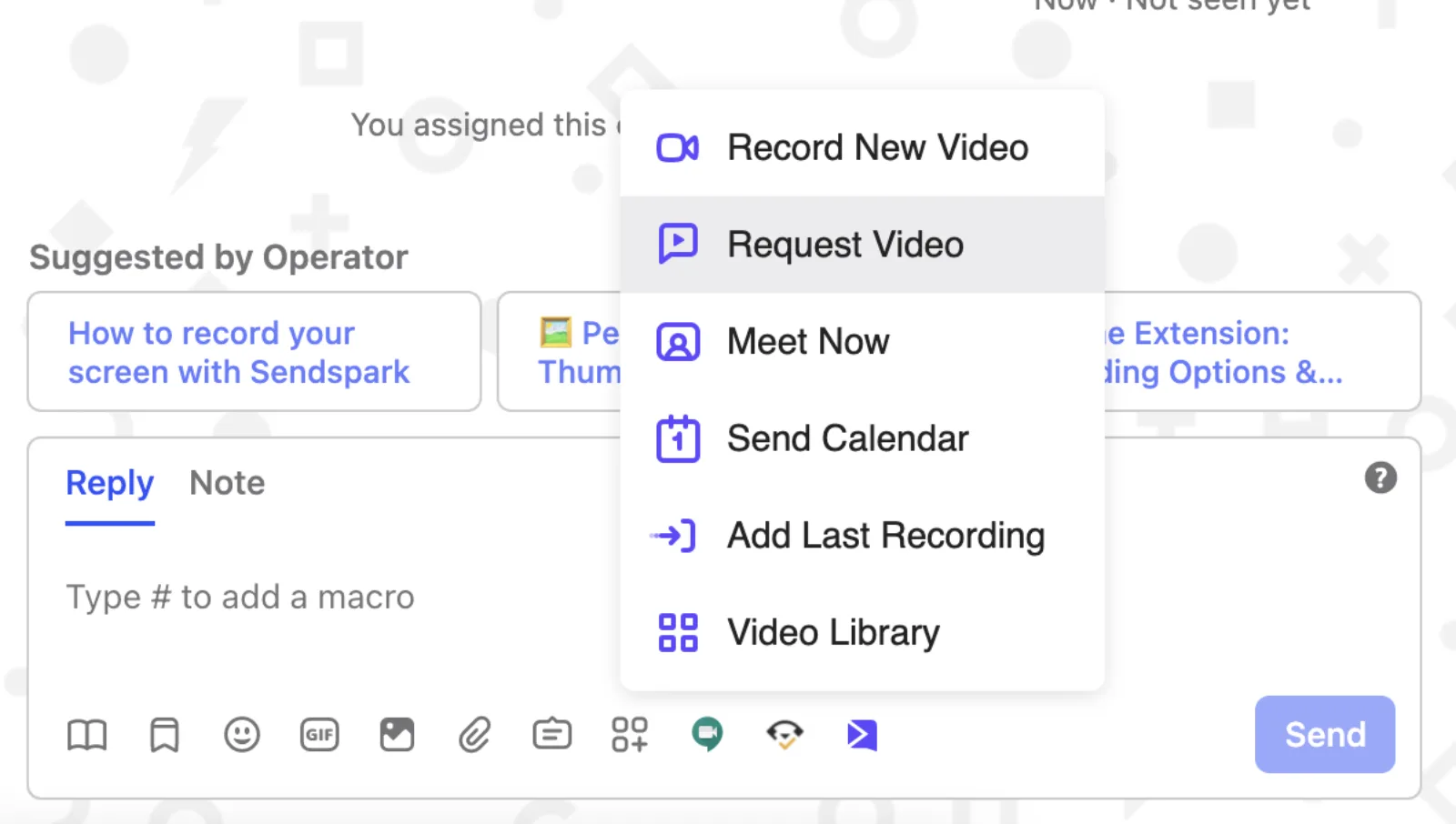
Pick Record New Video or another option
Click the icon and choose Record New Video, or Request Video, Send Calendar, Add Last Recording or Video Library.
- 3
Stop and preview
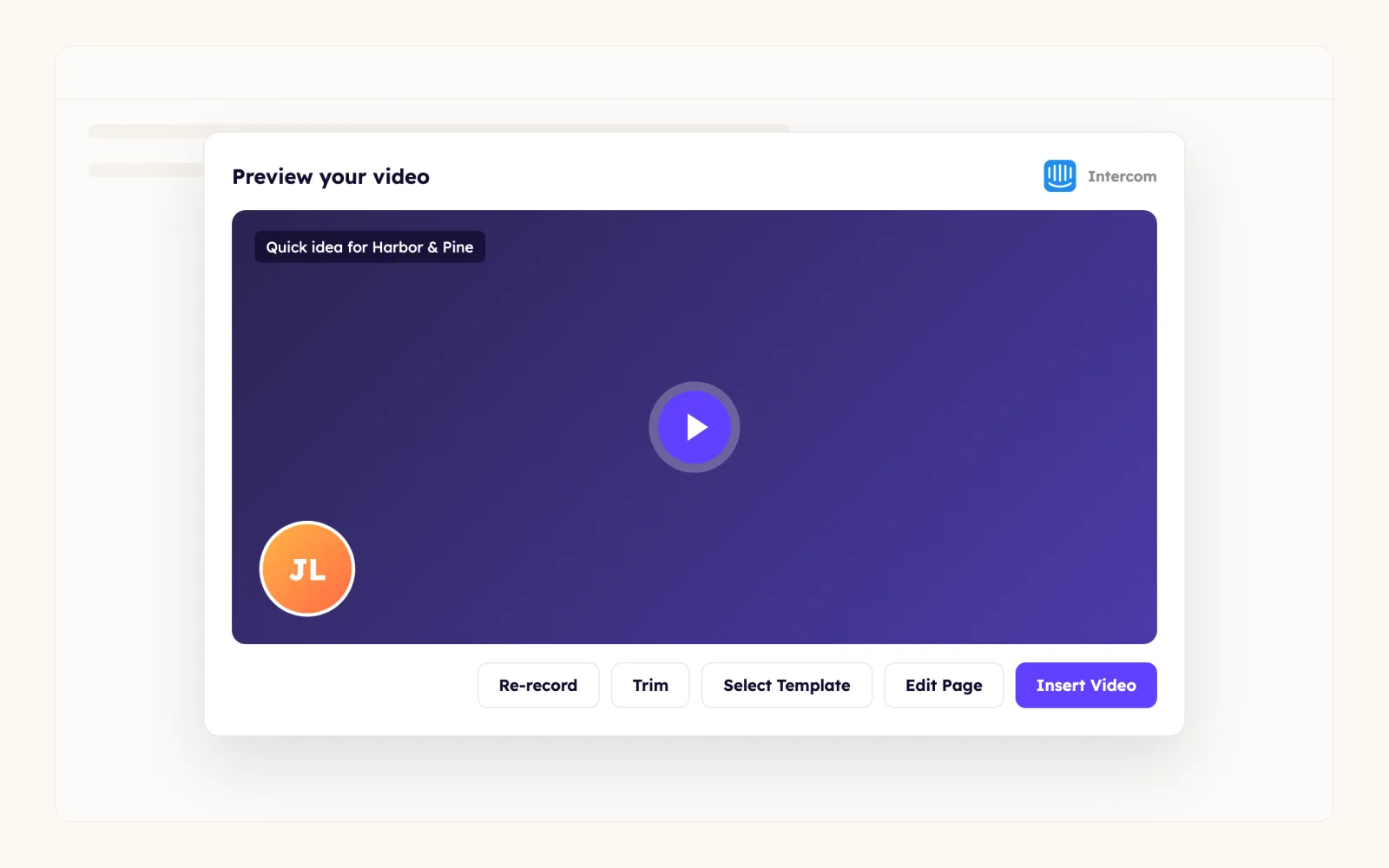
Click the Sendspark extension icon in the browser toolbar to finish. To change the landing page or thumbnail, click Edit Page / Thumbnail, then copy and paste the share link into Intercom.
- 4
Click Insert Video
Insert Video places the video in your reply, ready to send.

- 5
Or request a video from the customer
Choose Request Video to insert a request link. The customer records their camera or screen, or uploads a file, without a Sendspark account, and you get an email when it's ready.
What teams do with Sendspark and Intercom
Customers show you the bug instead of describing it
Send a video request link in Intercom and the customer records what they're seeing without installing anything. One link works for many customers, videos land in your Request Library for the whole workspace, and you can brand the request page under Manage Workspace > Set Global Styles.
Read the guideWelcome and feature emails with video in Intercom
In Sendspark, click Share Video, open the Embed video tab and Copy Code under Embed in Email. In Intercom's email editor, switch to Edit HTML, paste the code and send yourself a test; recipients whose inbox can't play video see a preview that opens it on the web.
Read the guideTag a conversation, send a personalized upgrade video
Create an Intercom webhook under Settings > Developers > Webhooks that fires when a tag is added and passes name, email and company. Route it to Sendspark to generate a personalized video from a template, then send the link with a HubSpot workflow email.
Read the guideWhat Intercom data personalizes each video
- Tag-triggered videos use the customer's name, email and company from the Intercom webhook, mapped into a Sendspark template placeholder such as Hi {{Name}}.
- Request pages take your logo, text colors and call-to-action and play button colors from Set Global Styles.
- Templates add a title, message and call-to-action to a video in one click; landing pages can embed a booking calendar.
- Embedded Intercom emails include an automatic fallback preview for inboxes that don't play video.
Where you see who watched from Intercom
Sendspark's video analytics show who viewed, how much they watched, CTA clicks and likes, and you're emailed when a requested video comes in. Nothing is written back to Intercom.
Explore Video AnalyticsSendspark and Intercom: frequently asked questions
Does Sendspark integrate with Intercom?
Yes. With the Sendspark Chrome extension, a purple Sendspark icon appears in the Intercom composer so you can record and insert videos, or insert a video request link, in conversations.
Do customers need a Sendspark account to record a video for support?
No. A video request link is a public recording page; they can record their camera or screen, or upload a file, without signing up or installing anything.
Do I need a new request link for every customer?
No. You can send the same request link to many customers, and every recording uploads to your Request Library, where all workspace members can see it.
Can I embed a video in an Intercom email?
Yes. Copy the email embed code from Sendspark's Share Video modal and paste it into Intercom's Edit HTML view; Sendspark supplies a fallback preview for inboxes that don't play video.
Updated
 ZendeskInstant integration (Chrome extension) and share snippet for macrosExplore Zendesk
 HubSpotInstant integration, HubSpot app (workflow actions and CRM tracking), share snippet, Agentic Workflows connection and calendar embedExplore HubSpot
 GmailInstant integration (Insert Video) and Agentic Workflows connectionExplore Gmail
Make your next outreach personal.
Record one video and let Sendspark do the rest.