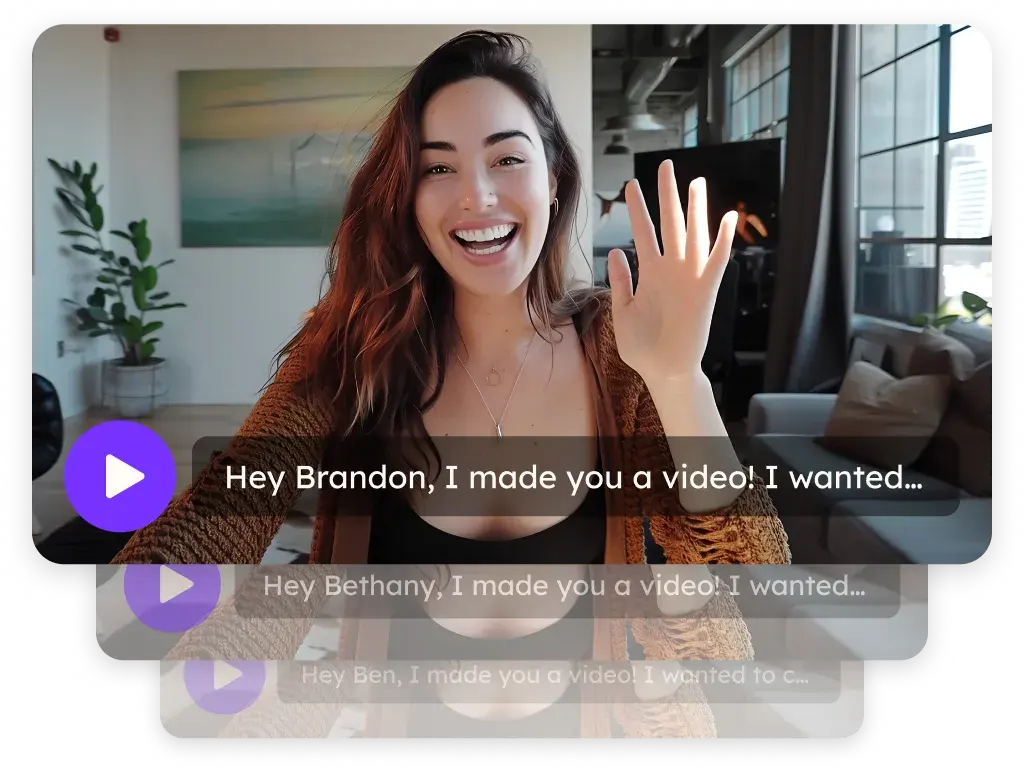
Sendspark Reply.io integration for personalized video in sequences
Paste your Sendspark video into Reply with two snippets, an Image GIF for the thumbnail and a Video URL for the link, or paste a dynamic campaign's snippet in code view. Through Zapier, a new or updated Reply contact can get a video created automatically. Sendspark is an AI personalized video platform that makes one recording personal for every prospect.
 SOC 2 Type II
- Read reviews on G2


Sendspark and Reply.io at a glance
- Integration type
- Share snippet, plus a Zapier automation
- How data moves
- You paste Sendspark's Reply snippets into a Reply template. With Zapier, a Reply contact being added or updated creates a dynamic video in Sendspark. Views are tracked in Sendspark.
- Plan
- The Zapier automation uses the Sendspark API key: Growth and above.
- What you need
- A Reply account. For the automation: a Zapier account, your Reply API key (Settings, API) and your Sendspark API Key and API Secret (Manage Workspace, Webhooks & API).
- Setup guides
- On Reply.io's side
- Sendspark on Zapier (with Reply)
Your sequence steps blur together in the prospect's inbox
Variables swap in a name and a company, and buyers have learned to spot it. Making each touch feel personal by hand doesn't scale past a handful of accounts, so most steps go out unread.
How to use Sendspark with Reply.io
- 1
Copy both Reply snippets
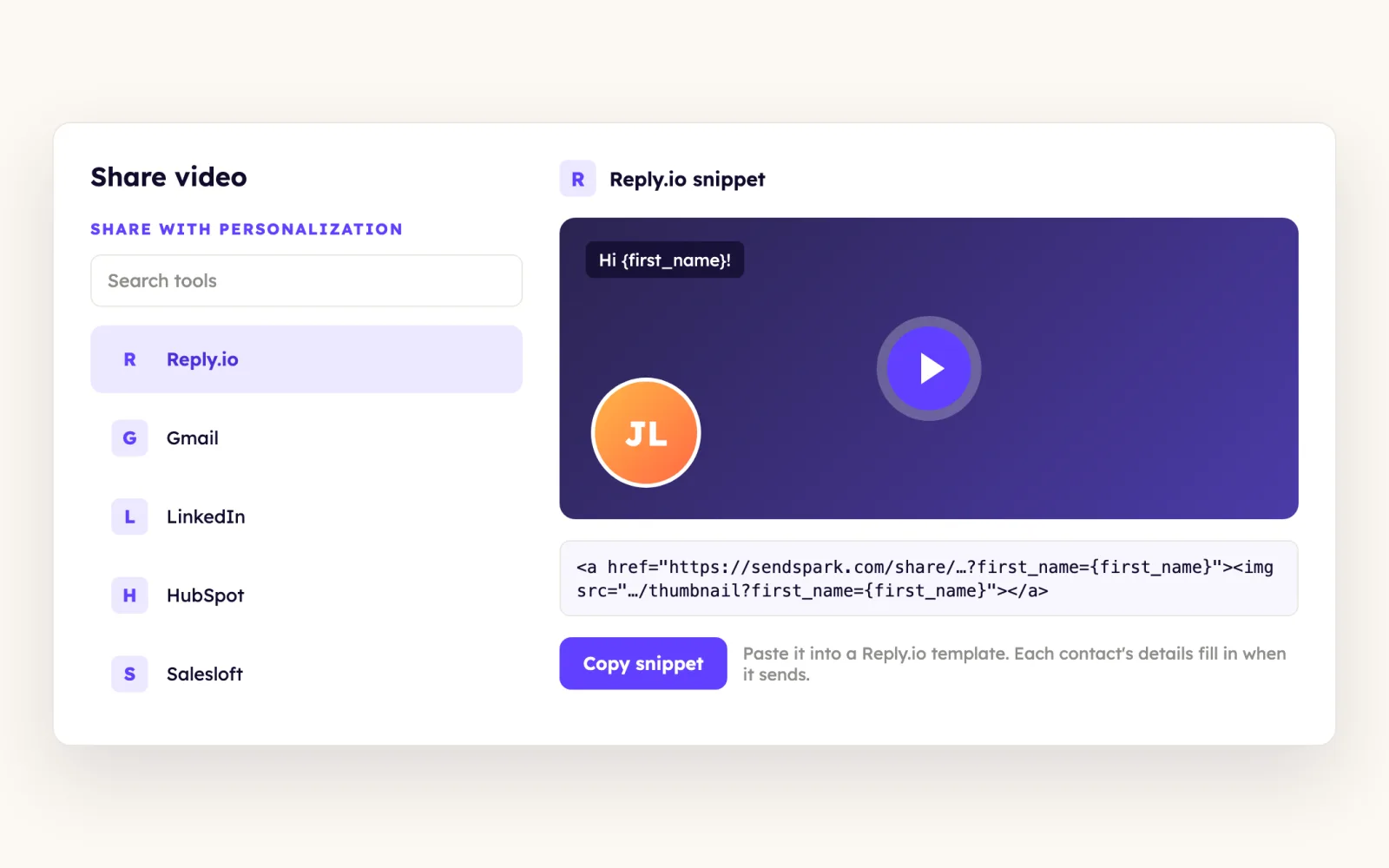
Click Share Video and, under Share with Personalization, find Reply Image Gif and Reply Video Url. You need both; click Edit/Add if they aren't there.
- 2
Insert the Image GIF in a Reply template
In Reply's Templates, click the image button and paste the Reply Image Gif into the Source field of the Insert/edit image dialog.
- 3
Hyperlink the image with the Video URL
Select the image, open Insert link and paste the Reply Video Url, so a click opens the full video on the web.
- 4
Preview the template
Open the Preview tab in Templates to see how the thumbnail changes for different recipients, then send a test email.
What teams do with Sendspark and Reply.io
Dynamic videos go out from a Reply template in code view
Create your dynamic video campaign in Sendspark and start a new template in Reply. Copy the Reply snippet, switch the editor to code view mode and paste it there.
Read the guideA new Reply contact gets a video made automatically
In Zapier, trigger on Reply's Add or Update Contact, then add Sendspark's Create dynamic video and pick your workspace and campaign. Map First Name (not full name), Email, Company and Job Title, then click Test & Continue to confirm the video is queued.
Read the guideWhat Reply.io data personalizes each video
- The Reply Video Url carries Reply's own variables, such as {{FirstName}} and {{Company}}, so the landing page fills in for each prospect.
- Sendspark dynamic variables cover first name, company name and job title, with fallback variables when a value is unknown.
- In the Zapier flow, the domain is pulled from the contact's email and can serve as the dynamic video's background URL.
Where you see who watched from Reply.io
Sendspark video analytics show who watched, how far they watched and where they're located; Team Insights rolls it up for the team.
Explore Video AnalyticsSendspark and Reply.io: frequently asked questions
Does Sendspark integrate with Reply.io?
Yes. You paste Sendspark's Reply snippets into Reply templates, and you can connect Reply to Sendspark through Zapier so a video is created when a contact is added or updated.
Why are there two Reply snippets?
Reply Image Gif is the thumbnail you insert as an image, and Reply Video Url is the link you put on that image. Without the link, the thumbnail won't open the video.
Which plan do I need for the Reply automation?
The Zapier connection uses your Sendspark API key, which is on Growth and above. Pasting the snippets into Reply templates doesn't need a specific plan.
Updated



Make your next outreach personal.
Record one video and let Sendspark do the rest.