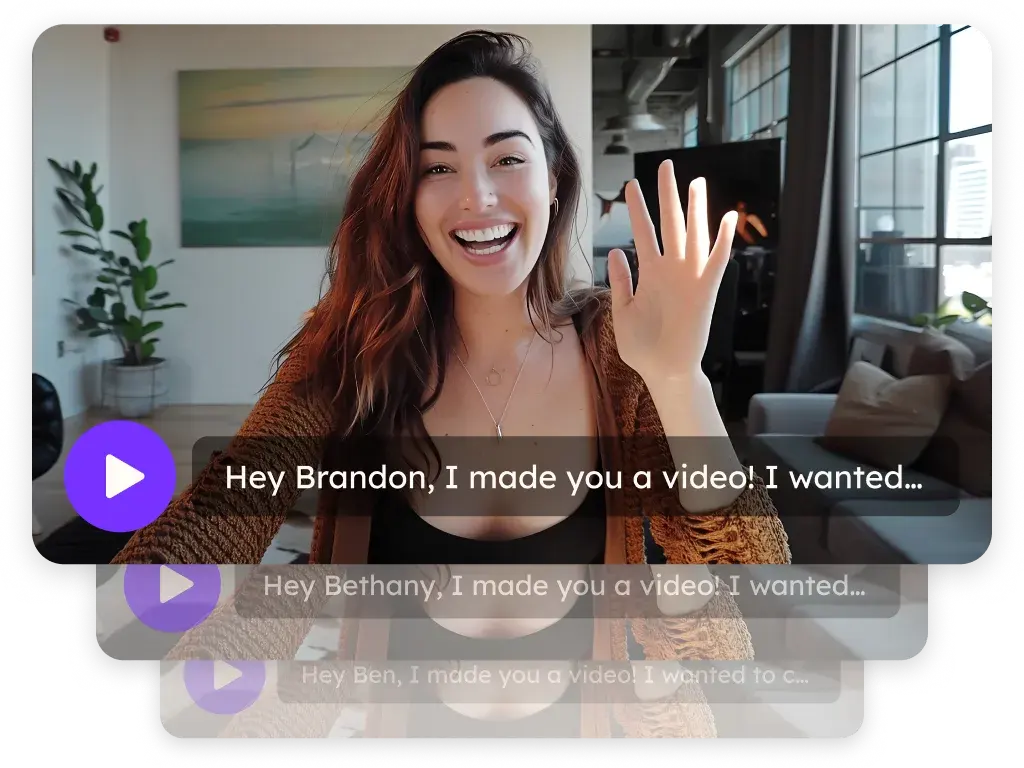
Sendspark Zapier integration for automated personalized videos
The Sendspark Zapier integration creates an AI personalized video whenever a Zap trigger fires, such as a form submission, a new CRM contact or a product signup. Sendspark is an AI personalized video platform for B2B sales and marketing teams. Sales and marketing ops teams use the Create Dynamic Video action to start videos and Sendspark webhooks to send them once they're ready.
 SOC 2 Type II
- Read reviews on G2


Sendspark and Zapier at a glance
- Integration type
- Import and automation source (Zapier app)
- How data moves
- Contact data comes in from your Zap trigger to a Sendspark Dynamic Video campaign. Optional webhooks send video details back out to Zapier when a video is created.
- Plan
- Growth and above
- What you need
- A Zapier account, a Sendspark Dynamic Video campaign, and your Sendspark API key and secret.
- Setup guides
- On Zapier's side
- Sendspark on Zapier
Hot leads come in at all hours, and no one's there to record a video
A form fill or new signup is the best moment to say hello, but someone has to notice it, record and send. By the time that happens the lead has moved on, so personal follow-up only happens when a rep has time.
How to use Sendspark with Zapier
- 1
Install the Sendspark app and start a Zap
Add the Sendspark integration from Zapier's app directory and create a new Zap. Every Zap has a trigger (the event) and an action (make the video).
- 2
Pick your trigger
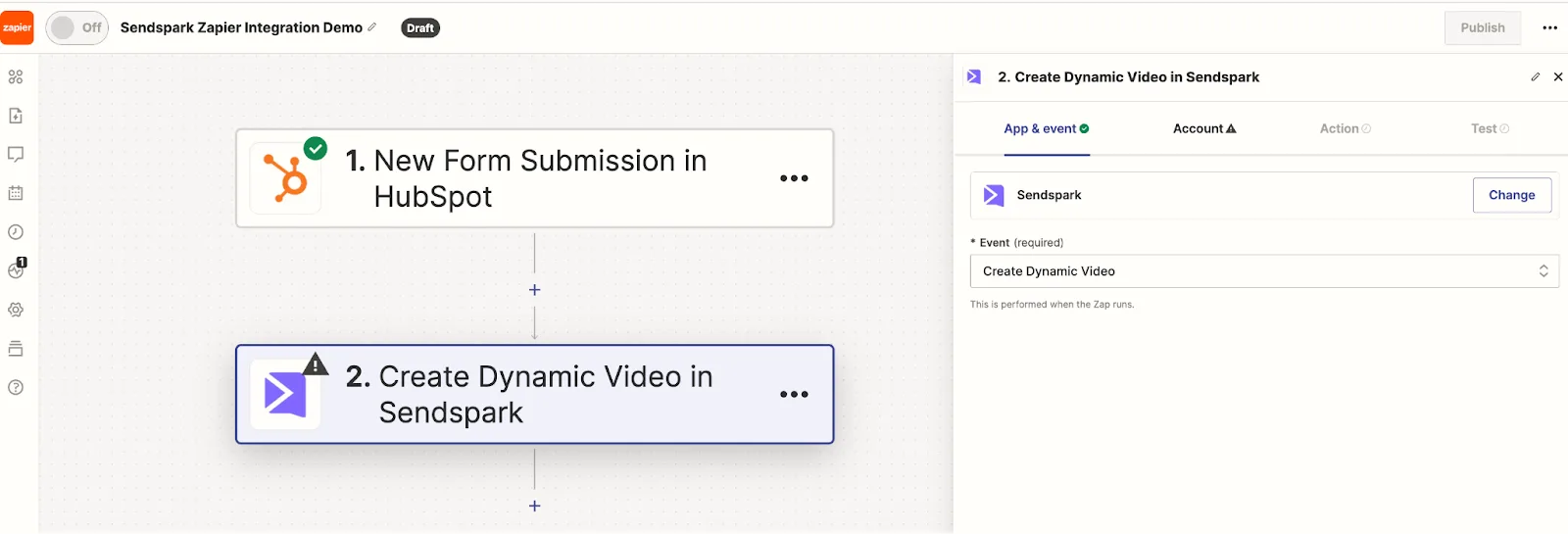
Choose any trigger that means it's time for a video, for example HubSpot, New Form Submission. Connect the account, pick the form, and test until you see the green check.
- 3
Add the Create Dynamic Video action
Click Action, search for Sendspark and select Create Dynamic Video. Zapier asks for your Sendspark API key and secret from the API Credentials page.
- 4
Fill in the IDs and map contact data
Enter your Workspace ID (from workspace settings) and the Dynamic Campaign ID (in the campaign URL after /edit-v2/). Map Name and Email from the trigger, plus Company Name, Job Title and Website URL if you have them.
- 5
Test, preview, publish
Run the Test tab and check that a video is generating for the contact in your Sendspark campaign. Preview it, then publish the Zap.
What teams do with Sendspark and Zapier
Send each video the moment it's created
Start a second Zap with Webhooks by Zapier and the Catch Hook event, copy the URL, and add it as a webhook in Sendspark. Tick Video Created, click Connect Campaign, and route the video details to your email or CRM app.
Read the guideTurn new Reply contacts into personalized videos
Use Reply's Add or Update Contact trigger with Sendspark's Create Dynamic Video action. Map First Name (not full name) and Email; the contact's email domain can serve as the background URL.
Read the guideDownload a whole campaign's videos
Connect a Catch Hook to the Video Created event before you generate, send each email and download link to a Google Sheet with Create Spreadsheet Row, then bulk download the list. Pick the high-res link for background videos.
Read the guideWhat Zapier data personalizes each video
- Name replaces "watermelon" in the AI voice clone and fills the first name variable on the landing page.
- Email is the unique identifier that links each video to the right contact in your sending tool, so it's required.
- Company Name and Job Title fill the matching Sendspark variables; Website URL becomes the background your camera bubble records over.
- Variable names in Zapier must match the ones your Sendspark campaign uses.
Where you see who watched from Zapier
Sendspark tracks views, watch time, CTA clicks and likes per video. With webhooks you can also pass events like Video Viewed or Video CTA Clicked to another Zap.
Explore Video AnalyticsSendspark and Zapier: frequently asked questions
Does Sendspark integrate with Zapier?
Yes. Sendspark has a Zapier app with a Create Dynamic Video action, so any Zapier trigger can generate an AI personalized video.
What triggers can start a video?
Almost any Zapier trigger: a prospect added to a list in Salesforce or Outreach, a website form fill, a new signup, or an action in your product.
Where do I find the Workspace ID and campaign ID?
The Workspace ID is in your Sendspark workspace settings. The Dynamic Campaign ID is in the campaign's URL, right after /edit-v2/.
How does Zapier know when a video is ready to send?
Add a Sendspark webhook pointed at a Webhooks by Zapier Catch Hook, tick Video Created and connect your campaign. Connect it before generating videos, since Zapier won't receive videos made earlier.
Updated



Make your next outreach personal.
Record one video and let Sendspark do the rest.