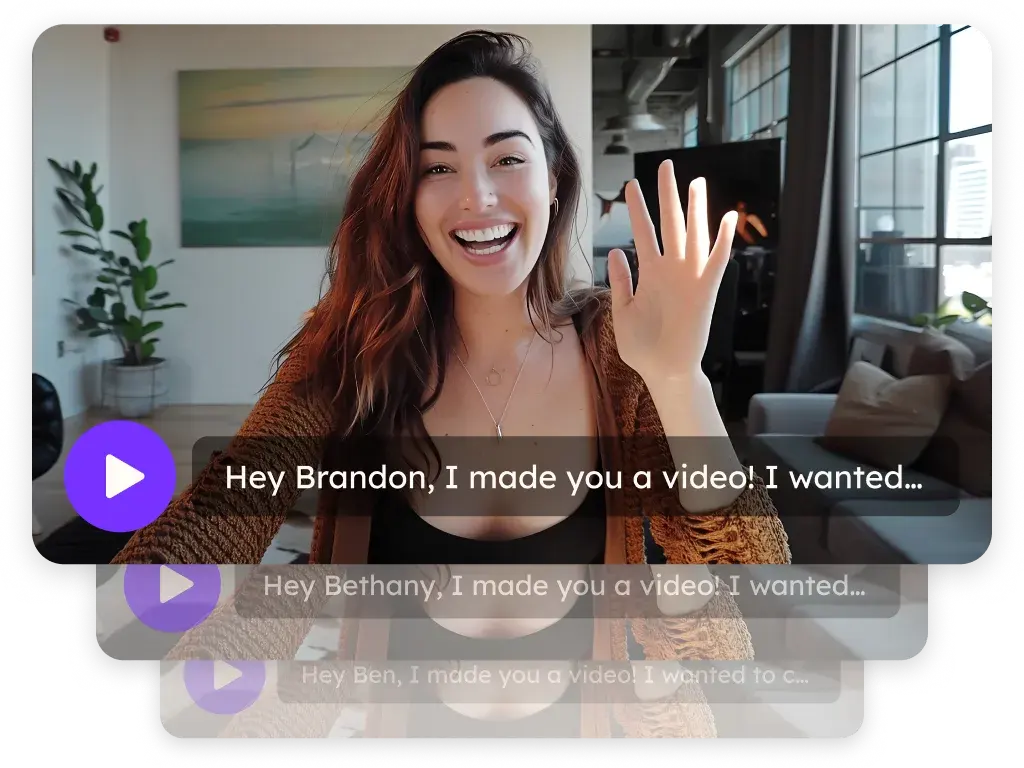
Sendspark ZoomInfo Engage integration for personalized video emails
Sendspark works inside ZoomInfo two ways: the Sendspark Chrome extension adds an icon to the ZoomInfo email composer so you can record and insert a video, and Sendspark's Engage share snippet lets you paste a personalized or AI-generated video into Engage templates and sequences. Sendspark is an AI personalized video platform for B2B sales and marketing teams.
 SOC 2 Type II
- Read reviews on G2


Sendspark and ZoomInfo Engage at a glance
- Integration type
- Instant integration (Chrome extension) and share snippet for Engage templates
- How data moves
- You insert a recorded video from the ZoomInfo composer, or paste Sendspark's Engage snippet into an Engage template. Nothing is written back to ZoomInfo; views are tracked in Sendspark.
- What you need
- The Sendspark Chrome extension in Chrome, and active Sendspark and ZoomInfo accounts
Your sequence emails sound like everyone else's sequence
Prospects can spot an automated step the moment they open it, so even well-targeted sequences get deleted unread. Adding a personal video to each step would change that, but recording one per contact doesn't fit a sequence that runs on its own.
How to use Sendspark with ZoomInfo Engage
- 1
Draft your email in ZoomInfo
With the Sendspark Chrome extension installed, open the ZoomInfo email composer and write your message, using ZoomInfo's Copilot to draft it if you like.
- 2
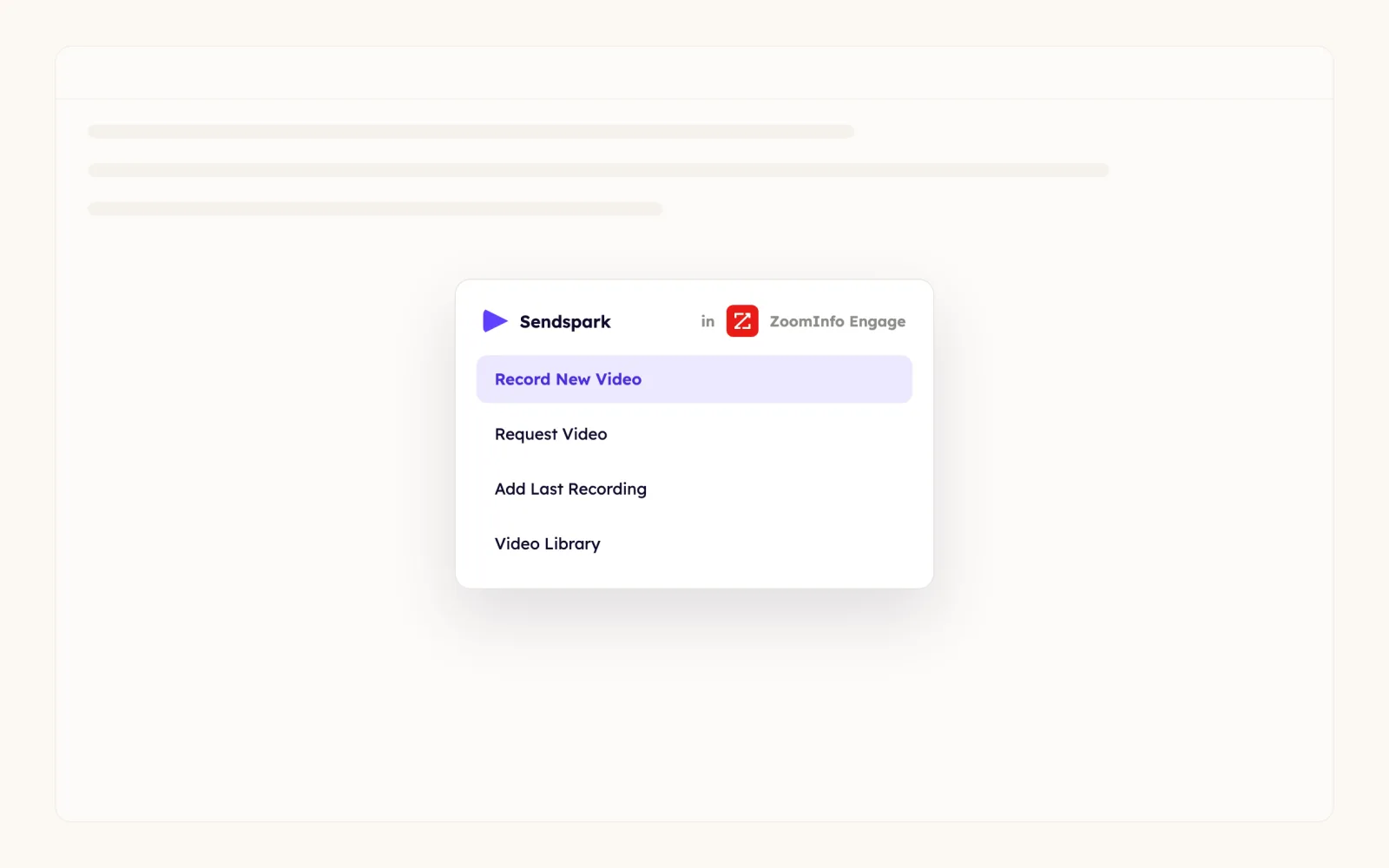
Click the Sendspark icon
Choose Record New Video, Request Video, Add Last Recording or Video Library. After recording, preview the video and insert it into the email.
- 3
Personalize a video for Engage templates
For sequences, add first name, company name and job title variables to both the video share page and the thumbnail, so the email preview personalizes too.
- 4
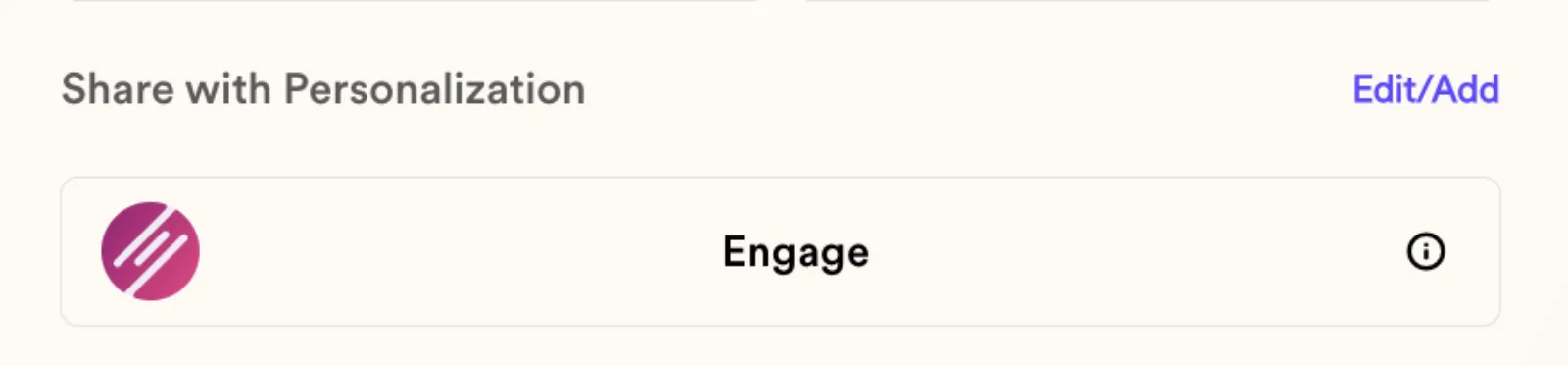
Copy the Engage snippet
Click Share Video and, under Share with Personalization, click Engage to copy the snippet.
- 5
Paste into a new Engage template
Create a new template in Engage and paste the snippet there, not directly into a one-off send. Use the template in sequences and direct emails, and the tokens fill in for each recipient.
What teams do with Sendspark and ZoomInfo Engage
An AI-personalized video in every Engage sequence step
Create a Dynamic Video campaign, record starting with "Hi Watermelon" and turn on Voice Cloning so each prospect hears their own name, with Simulate Scrolling and Cursor Overlay over their website. Import a CSV, then click Share Campaign and Engage and paste the snippet into your Engage template.
Read the guideOnly email the prospects who have a video
The template shows a generic preview until you preview as a contact from your Sendspark list. Before turning the sequence on, export the generated videos as a CSV so you're only enrolling people Sendspark made a video for.
Read the guideOne recording, personalized for every recipient
Record once with first name, company and job title variables, save the Engage snippet as a template, and send it to many prospects; anyone missing data sees your fallback text.
Read the guideWhat ZoomInfo Engage data personalizes each video
- Engage snippets carry first name, company name and job title variables on the share page and the thumbnail.
- Fallback text appears when ZoomInfo doesn't have a contact's details.
- In dynamic campaigns, Voice Cloning replaces "Watermelon" with each viewer's first name, and the prospect's website can scroll behind you with an optional cursor overlay.
- Multiple AI variables per video need Growth and above; voice cloning and personalized thumbnails are Solo and above.
Where you see who watched from ZoomInfo Engage
Sendspark's video analytics show who's watching, what percentage they watched, CTA clicks and likes, with export to CSV. Nothing is written back to ZoomInfo.
Explore Video AnalyticsSendspark and ZoomInfo Engage: frequently asked questions
Does Sendspark integrate with ZoomInfo?
Yes. The Sendspark Chrome extension adds an icon to the ZoomInfo email composer for recording and inserting videos, and Sendspark's Engage share snippet puts personalized videos into ZoomInfo Engage templates and sequences.
Why does my Engage template show a generic video preview?
That's expected when you first paste the snippet. Preview the email as a contact who was on your Sendspark list to see the video generated for them.
Where should I paste the Sendspark snippet in Engage?
Into a new Engage template. Once saved, the template works in email sequences and direct emails.
How do I avoid emailing prospects who don't have a video yet?
Export the generated videos from your Sendspark campaign as a CSV and enroll only those contacts in the sequence.
Updated



Make your next outreach personal.
Record one video and let Sendspark do the rest.