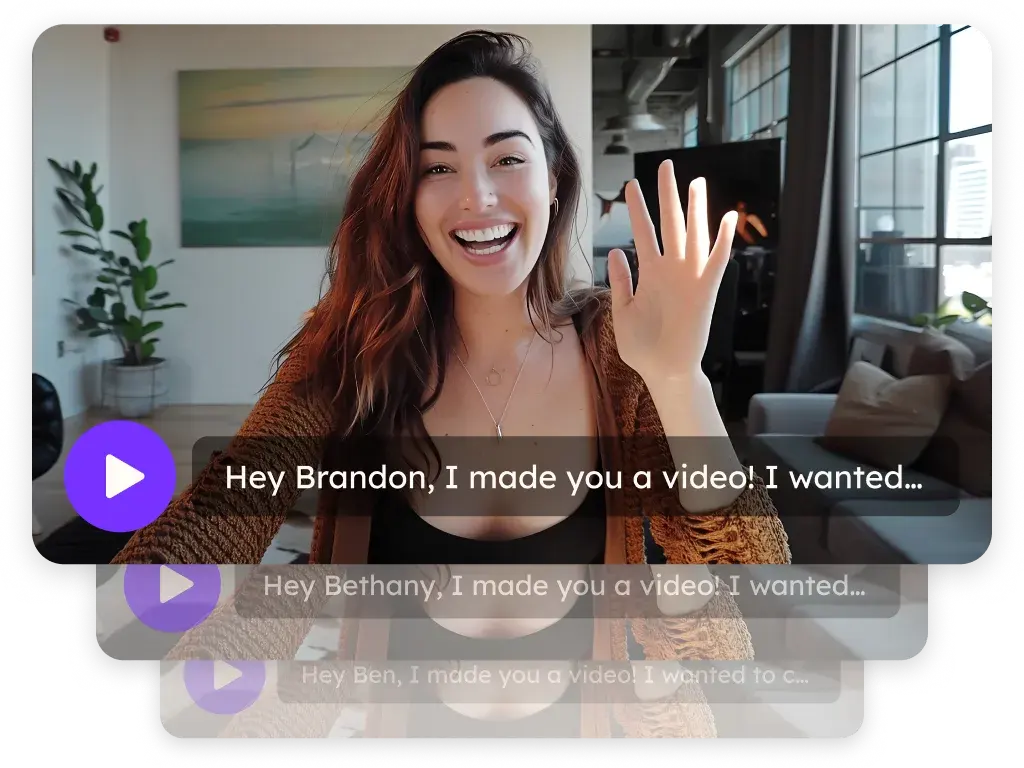
Sendspark lemlist integration for personalized video in email and LinkedIn steps
Paste your Sendspark video into lemlist emails through Code View and each contact sees their own personalized video, or drop the video link into a lemlist LinkedIn message as a custom variable. With Agentic Workflows, a lemlist reply can create a video and add the lead to a follow-up campaign. It's for outbound teams running multichannel campaigns in lemlist. Sendspark is an AI personalized video platform: you record one video and it creates a personalized version for every prospect.
 SOC 2 Type II
- Read reviews on G2


Sendspark and lemlist at a glance
- Integration type
- Share snippet and Agentic Workflows connection
- How data moves
- You paste the Sendspark snippet into a lemlist email, or map the video link into a lemlist custom variable for LinkedIn. With Agentic Workflows (lemlist API key as the access token), lemlist replies start video creation and Sendspark can add leads to a lemlist campaign. Views and clicks are tracked in Sendspark.
- Plan
- Agentic Workflows: Growth and above.
- What you need
- A lemlist account; for automations, a lemlist API key generated in lemlist's integration settings; for LinkedIn steps, your LinkedIn account connected inside lemlist.
- Setup guides
- On lemlist's side
- Sendspark in lemlist's integrations
Your lemlist campaign touches every channel and still feels like a mail merge
An image with the lead's name on it stopped feeling personal a while ago, and recording something real for every lead across email and LinkedIn isn't practical. So the steps run, and the replies don't come.
How to use Sendspark with lemlist
- 1
Copy the lemlist snippet
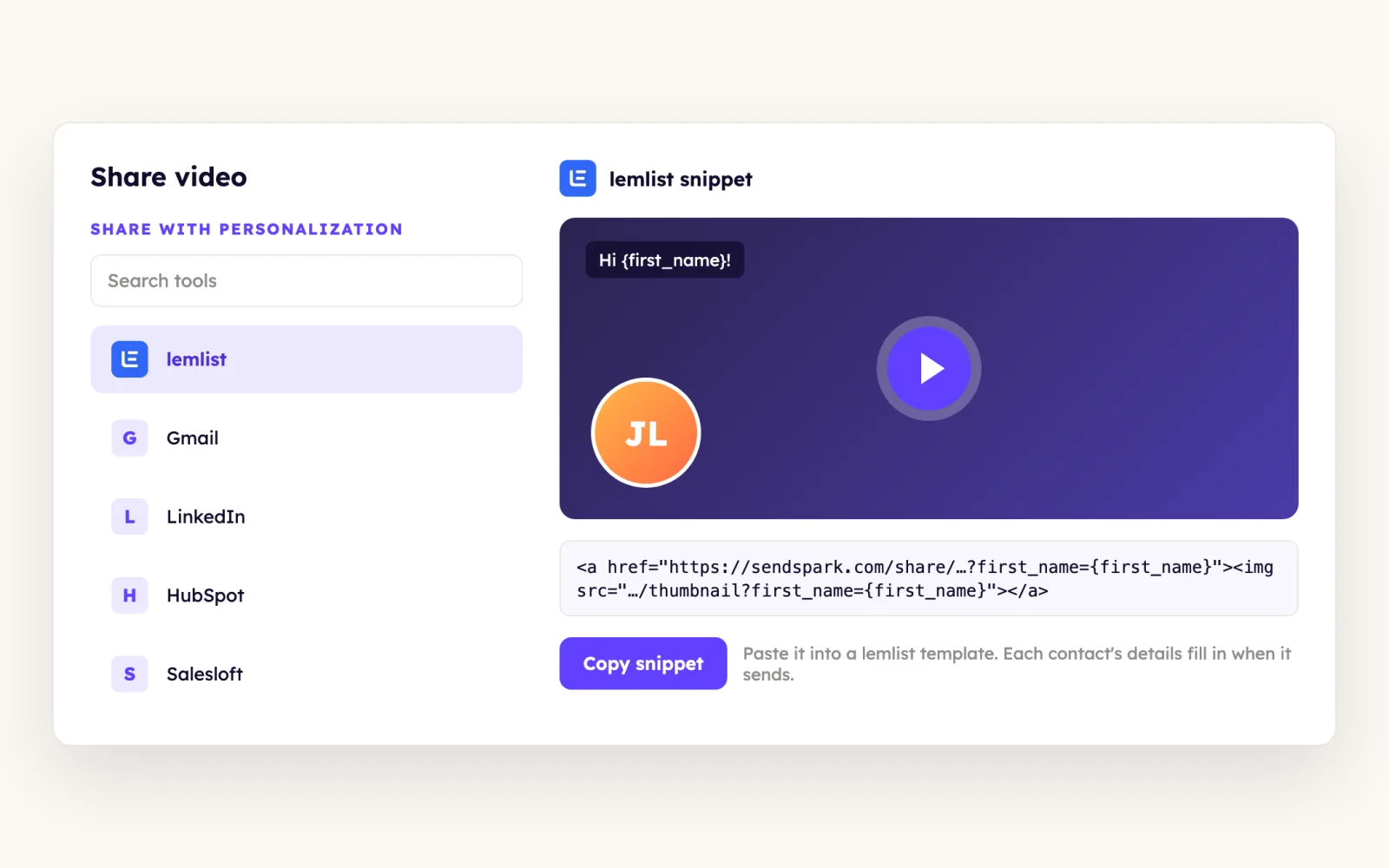
Open your dynamic video campaign in Sendspark, click Share Campaign, search for lemlist and click it to copy the snippet.
- 2
Open Code View from More Rich
In your lemlist email, click the three dots at the bottom of the editor to open More Rich options, then choose Code View.

- 3
Paste the snippet and switch back
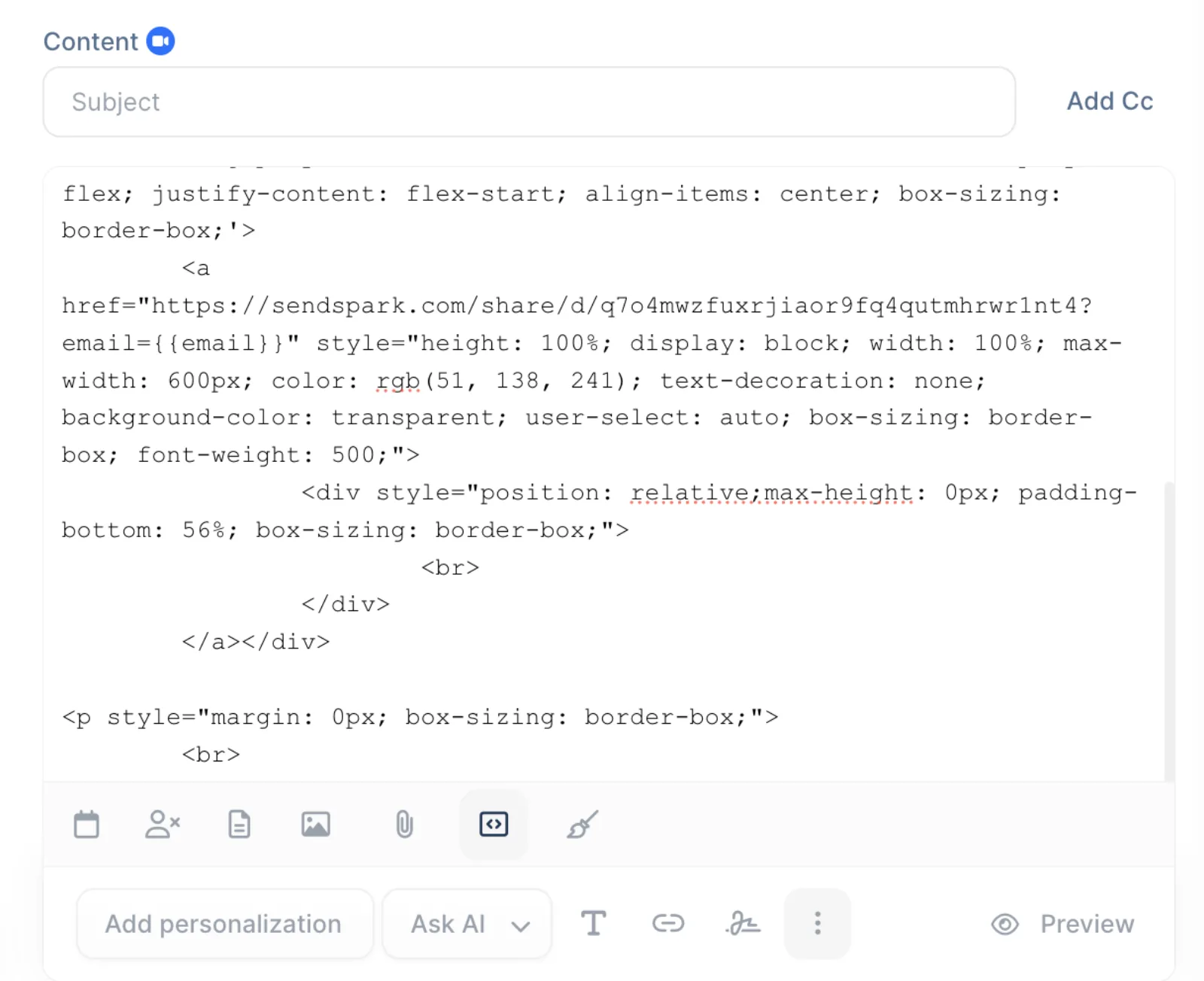
Paste the Sendspark snippet where the video should go, then switch out of Code View. The personalized video preview appears in your email.
- 4
Resize the thumbnail if it's too big
Back in Code View, find the thumbnail's width attribute and change it, for example width="50%" for half size or width="30%" for smaller, then preview.
- 5
Preview each contact's video
Click Preview in the bottom right. Contacts you generated videos for show their own video; if one shows the fallback, check that their email matches in Sendspark and lemlist.
What teams do with Sendspark and lemlist
Leads who reply yes get the video they asked for
Trigger on lemlist, Emails Replied, filtered by Campaign name contains, then Sendspark Create dynamic video (map email; Show all fields reveals the background URL), then lemlist Add a lead to a campaign to enroll them in a follow-up that already holds the snippet.
Read the guideNew videos go out as lemlist LinkedIn messages on autopilot
Create a campaign custom variable such as custom, turn on Auto Launch, and add a Chat Message step using it. Trigger on New Video Generated and map Video Link to the Lead Custom Field as a string. LinkedIn unfurls the link into a preview.
Read the guideA CSV round trip puts videos into LinkedIn follow-ups
Map each lead's LinkedIn Profile URL to unique ID, export the generated videos CSV, add a video_link custom variable to your message, and re-import the CSV mapping video_link. Send it as a follow-up after the connection is accepted.
Read the guideClay creates the videos and enrolls leads in lemlist
Run the Sendspark Clay enrichment, add a video link column to confirm each video generated, then use Clay's lemlist enrichment set to add contacts only after their videos exist.
Read the guideWhat lemlist data personalizes each video
- First name, company name, job title and other dynamic properties on the video and thumbnail, set with the Personalize button; keep lemlist contact fields matched to them.
- Email is the match key: a contact missing from Sendspark, or with a different email, sees the fallback video.
- Thumbnail size is set by the width attribute in Code View (for example 50% or 30%).
- LinkedIn steps use a campaign-specific custom variable (for example #{{video_link}}); never put the link in a connection request, where LinkedIn suppresses previews and may flag it.
- Dynamic backgrounds can use the lead's LinkedIn profile or a custom image URL.
Where you see who watched from lemlist
Views, watch time and CTA clicks are tracked in Sendspark video analytics and Team Insights.
Explore Video AnalyticsSendspark and lemlist: frequently asked questions
Does Sendspark integrate with lemlist?
Yes. You paste a Sendspark video snippet into lemlist emails through Code View, send video links in lemlist LinkedIn steps, and use lemlist triggers and actions in Sendspark Agentic Workflows.
Where do I paste the Sendspark snippet in lemlist?
In Code View. Click the three dots at the bottom of the email editor for More Rich options, choose Code View, paste, then switch back.
How do I make the video thumbnail smaller in lemlist?
Open Code View, find the thumbnail's width attribute and lower it, for example to 50% or 30%, then preview the email.
Can I send Sendspark videos in lemlist LinkedIn messages?
Yes, as a follow-up message to people you're already connected with. Put the video link in a custom variable; LinkedIn shows the preview. Don't add it to connection requests.
Which plan do I need for lemlist automations?
Agentic Workflows are on Growth and above. Pasting the snippet into lemlist emails doesn't need a specific plan.
Updated


Make your next outreach personal.
Record one video and let Sendspark do the rest.