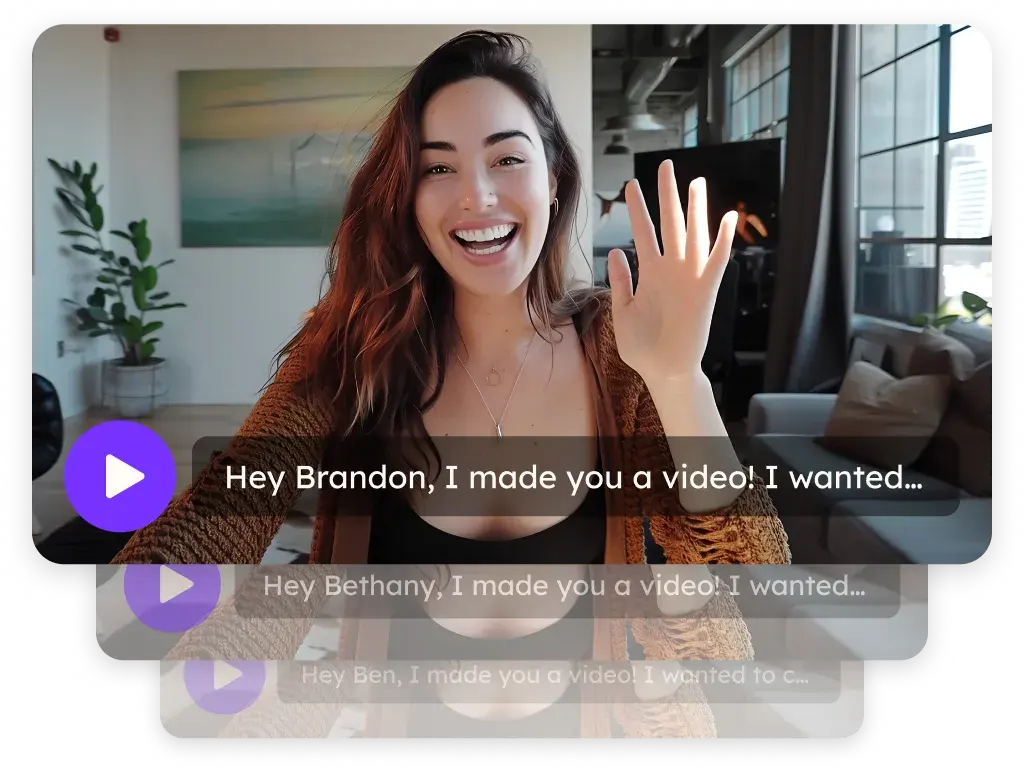
Sendspark Mailshake integration for personalized video in cold email
Paste your Sendspark video into a Mailshake sequence message, and each prospect you upload gets the video made for them. Outbound teams running Mailshake campaigns use it to put a personalized thumbnail and video link in cold email. Sendspark is an AI personalized video platform that personalizes one recording for every prospect.
 SOC 2 Type II
- Read reviews on G2


Sendspark and Mailshake at a glance
- Integration type
- Share snippet
- How data moves
- You paste Sendspark's Mailshake snippet into a sequence message and upload the exported contacts to the campaign. Prospect data stays in Mailshake, and video views are recorded in Sendspark.
- What you need
- A Mailshake account and a Sendspark video or dynamic video campaign.
- On Mailshake's side
- About Mailshake
Your cold sequence reads like a template, because it is one
Prospects can tell when the first line is the only thing that changed. Writing or recording something real for each lead doesn't fit a campaign of any size, so replies stay rare.
How to use Sendspark with Mailshake
- 1
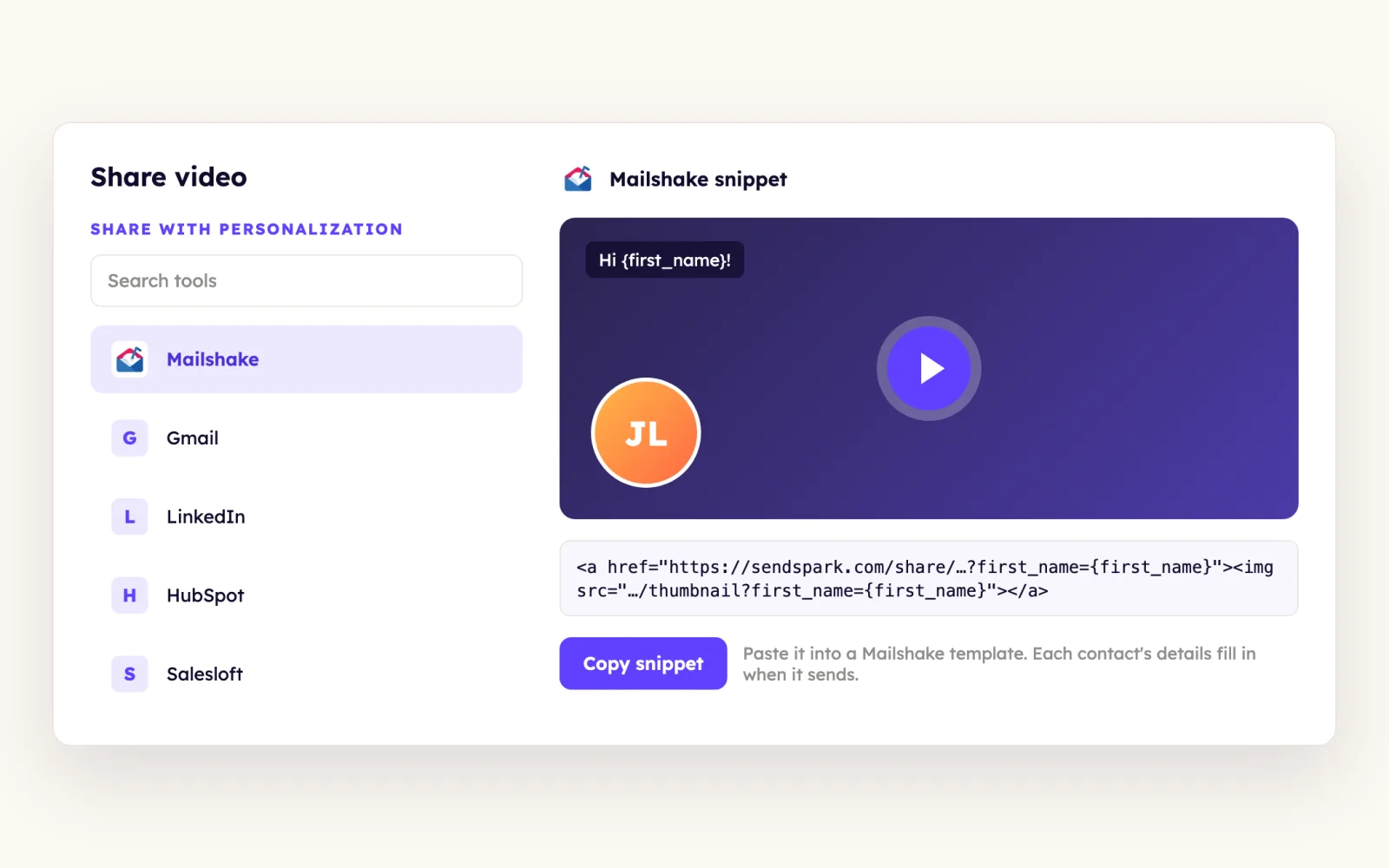
Copy the Mailshake snippet
In your dynamic video campaign, click Share Campaign, find Mailshake and click it to copy the code. For a single video, click Share Video and pick Mailshake under Share with Personalization.
- 2
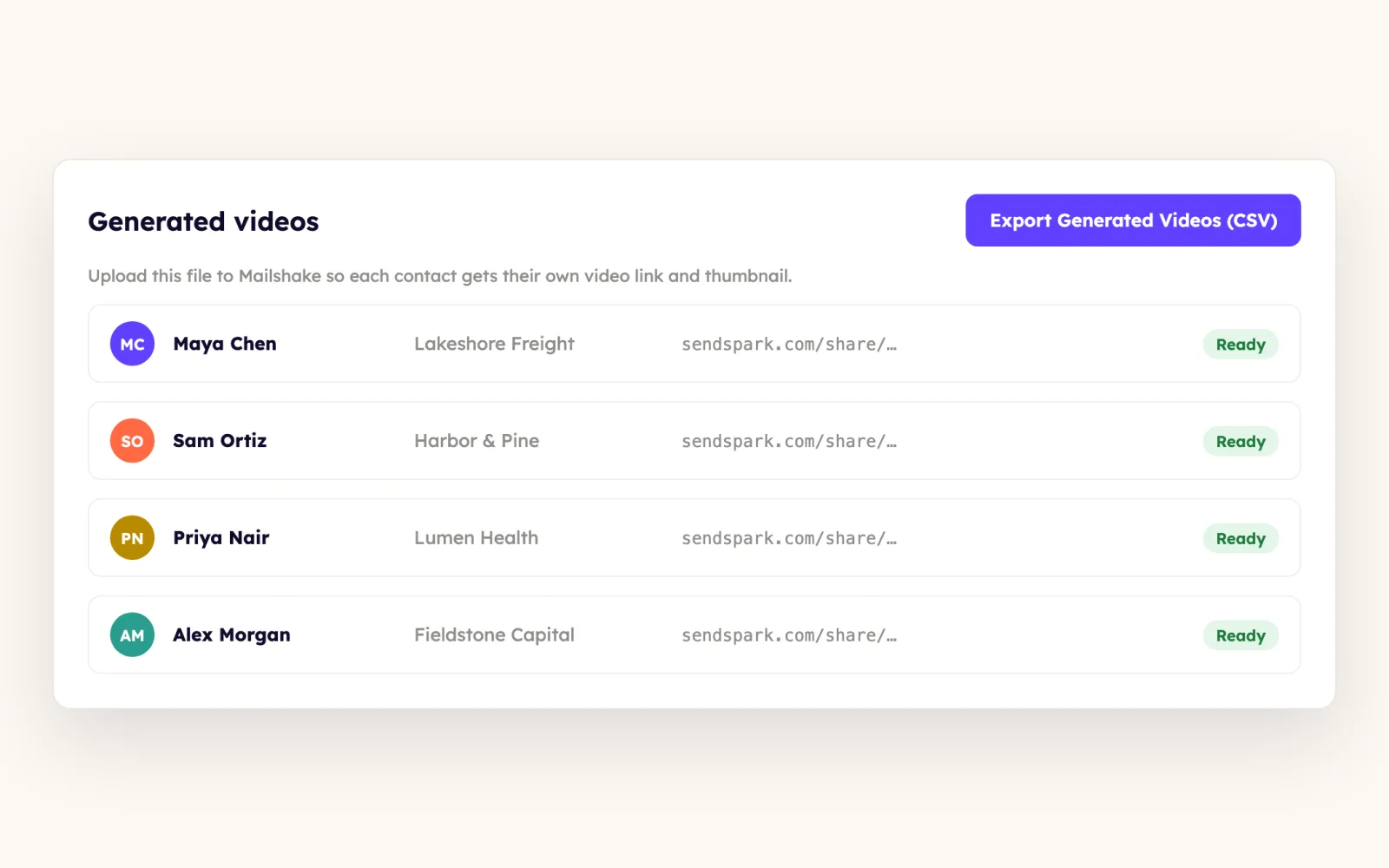
Export the generated contacts
Click Export Generated Videos (CSV) in the generated-videos panel, so the list you upload to Mailshake is the one Sendspark made videos for.
- 3
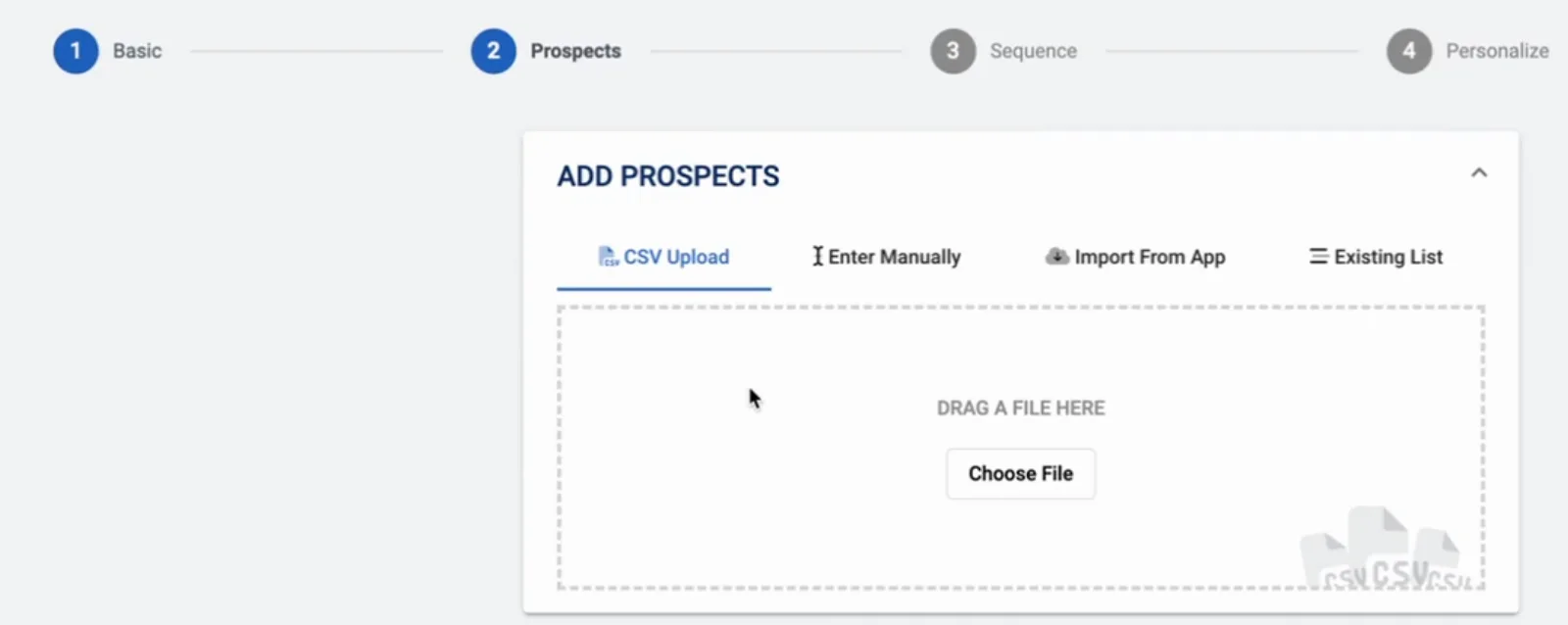
Upload prospects to the campaign
In Mailshake, start a campaign and add the exported file at the Prospects step using CSV Upload.
- 4
Paste into the sequence message
At the Sequence step, compose the message and paste the snippet with CMD or CTRL + V. Save the template, check a prospect at the Personalize step, then confirm and launch.
What teams do with Sendspark and Mailshake
One video speaks to each Mailshake prospect by name
Add placeholders to the video header, message and thumbnail so contact details from Mailshake fill in at send time. Click Share Video, select Mailshake, paste into a Mailshake email draft and preview before sending.
Read the guideWhat Mailshake data personalizes each video
- Placeholders pull each prospect's first name, company name and job title into the video header, message and thumbnail.
- Dynamic campaigns put the prospect's website behind you, with their name in your cloned voice.
- The snippet renders as the video thumbnail with a link to watch it underneath.
- Mailshake has to send to the same contacts you generated videos for, which is why the exported CSV matters.
Where you see who watched from Mailshake
Views, watch percentage and CTA clicks show in Sendspark analytics and Team Insights.
Explore Video AnalyticsSendspark and Mailshake: frequently asked questions
Does Sendspark integrate with Mailshake?
Yes. Sendspark gives you a Mailshake snippet that you paste into a sequence message. Prospects aren't synced; you upload the exported CSV to the Mailshake campaign yourself.
Why export a CSV from Sendspark before building the Mailshake campaign?
Each video belongs to one contact. Uploading the Export Generated Videos (CSV) file at the Prospects step makes sure every prospect in the campaign has a matching video.
What if Mailshake isn't in my Sendspark share options?
Click Edit/Add in the share modal to change your shortcuts and add Mailshake.
Updated


Make your next outreach personal.
Record one video and let Sendspark do the rest.