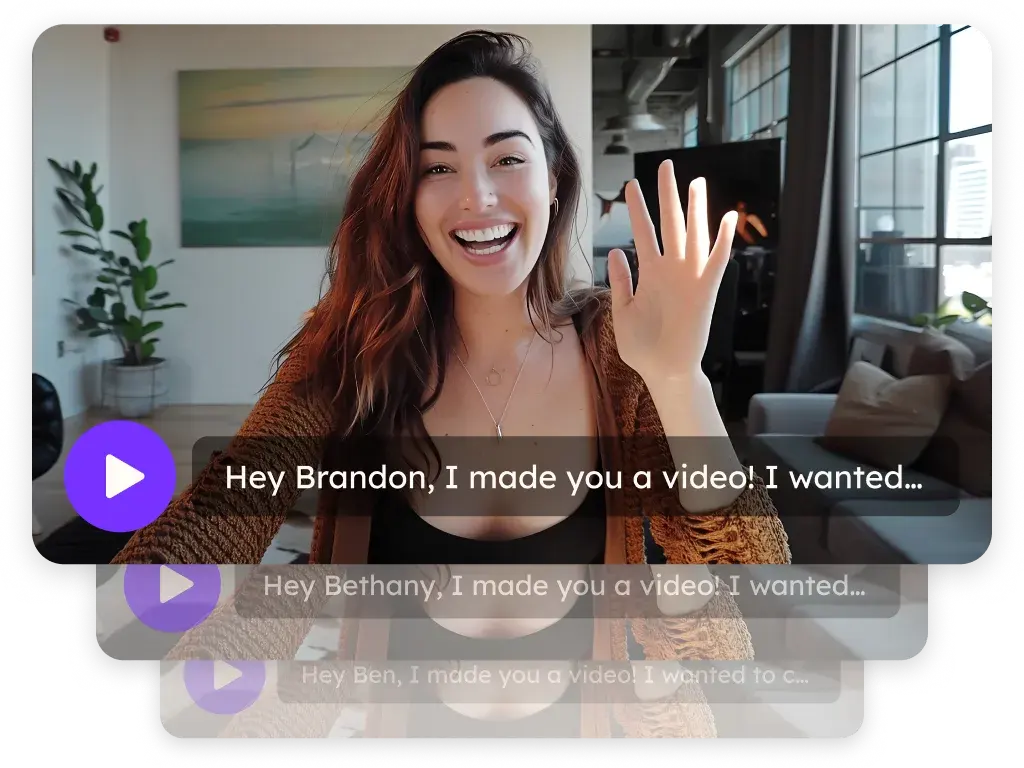
Sendspark Snov.io integration for personalized video in email campaigns
Paste your Sendspark video into a Snov.io email step, and match every prospect to their own video with an email2 custom field. Outreach teams running Snov.io campaigns use it to put personalized video in cold email. Sendspark is an AI personalized video platform that personalizes a single recording for each prospect.
 SOC 2 Type II
- Read reviews on G2


Sendspark and Snov.io at a glance
- Integration type
- Share snippet
- How data moves
- You paste the Snov.io Email snippet into a campaign email step and upload prospects with a matching email2 column. Snov.io doesn't receive any data back; watch activity lives in Sendspark.
- What you need
- A Snov.io account with access to custom fields, and a Sendspark video or dynamic video campaign.
- Setup guides
- On Snov.io's side
- About Snov.io
You found the right prospects and your email still sounds like a mail merge
Good data gets you into the inbox, not into the prospect's head. Writing something personal for each verified contact takes longer than finding them did, so the copy stays generic.
How to use Sendspark with Snov.io
- 1
Add an email2 custom field
In Snov.io's Leads app, click the three dots, choose Manage Custom Fields and add a Text field named email2. Snov.io needs this second, unique email field to tie each video to the right recipient.
- 2
Copy the Snov.io Email snippet
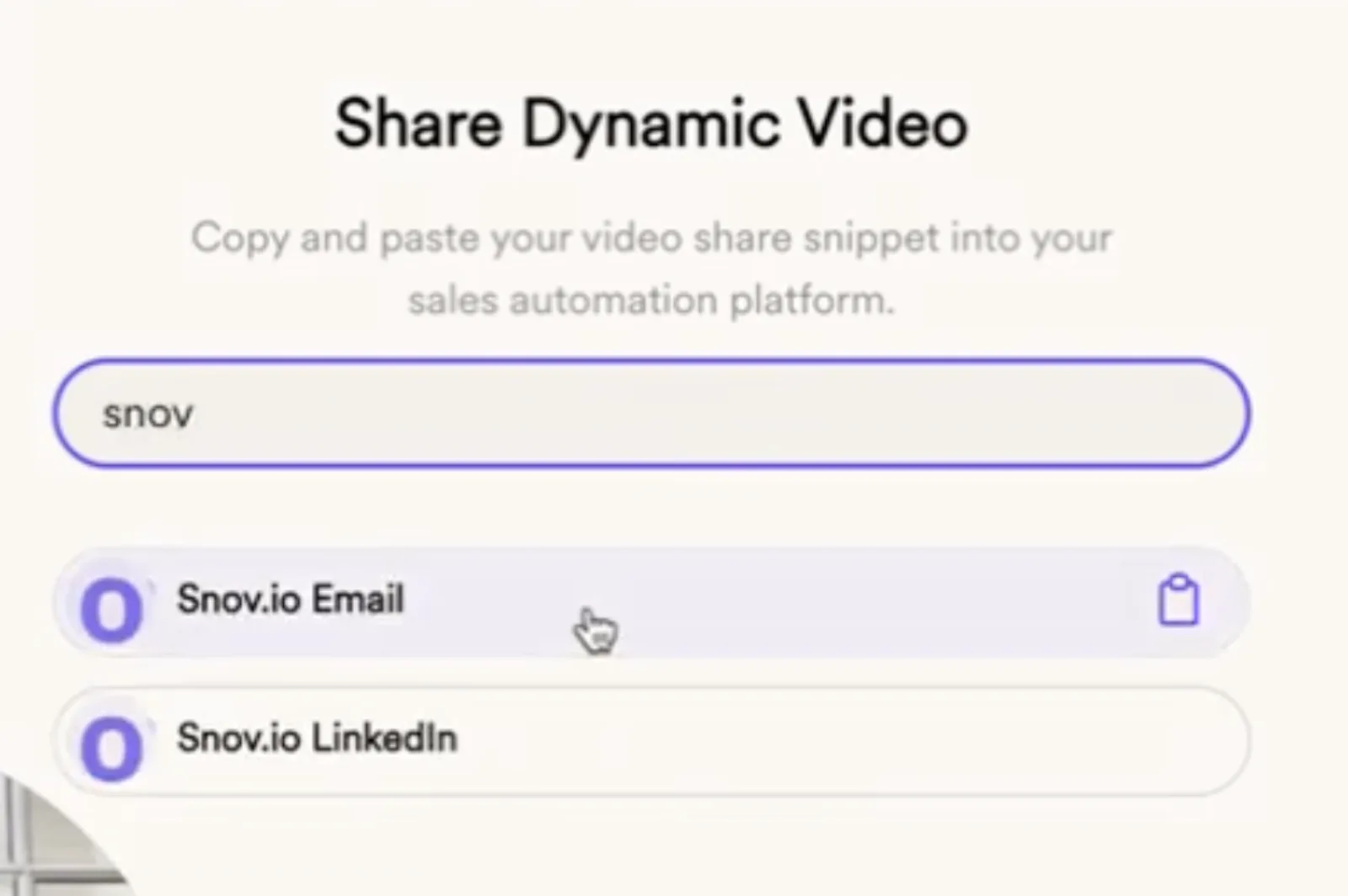
In your Sendspark campaign, click Share Campaign, search for Snov.io and choose Snov.io Email (the Email Only option) to copy the snippet.
- 3
Paste it into the email step
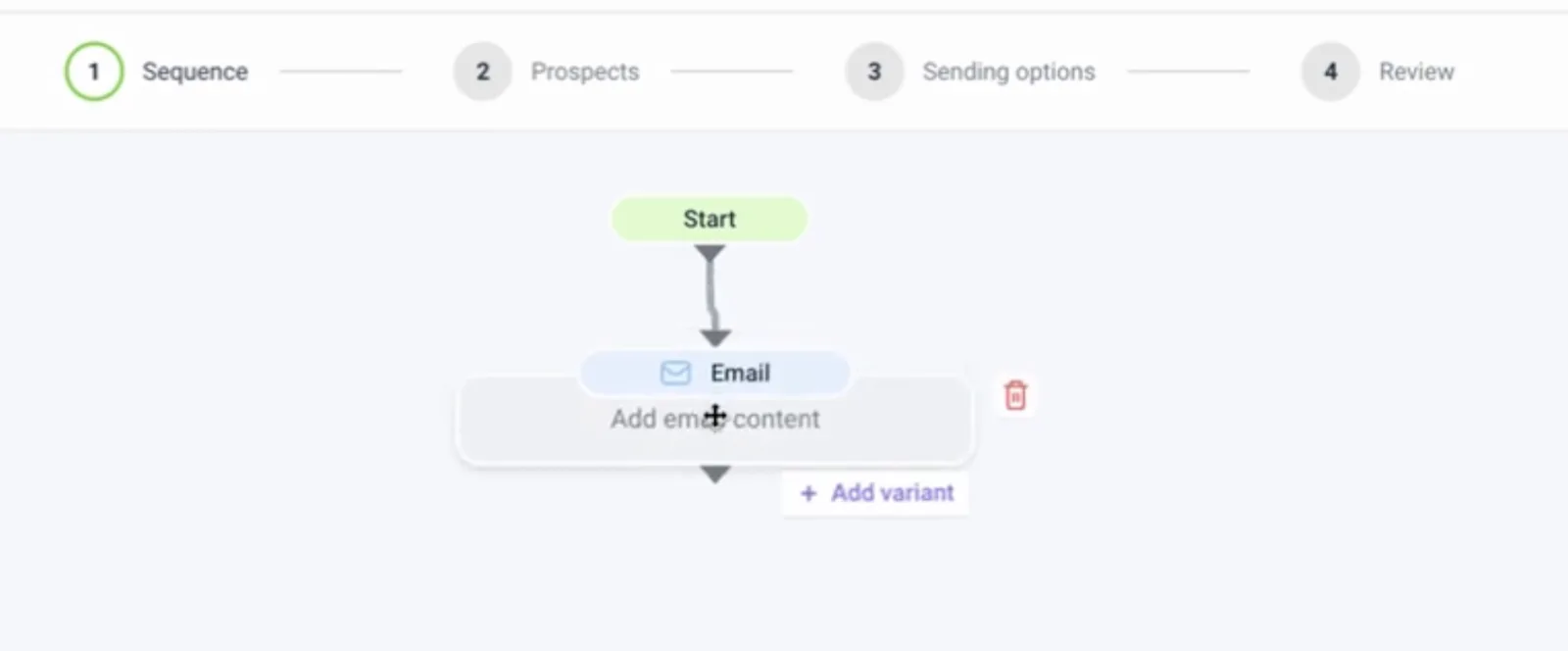
Start a Snov.io campaign, open the Email step in the Sequence builder, paste the snippet, add a subject line and save.
- 4
Upload prospects with an email2 column
Click Export Generated Videos (CSV), duplicate the EMAIL column and rename the copy exactly email2. Create a new list under Prospects, upload the file and map both email and email2.
- 5
Preview, then launch
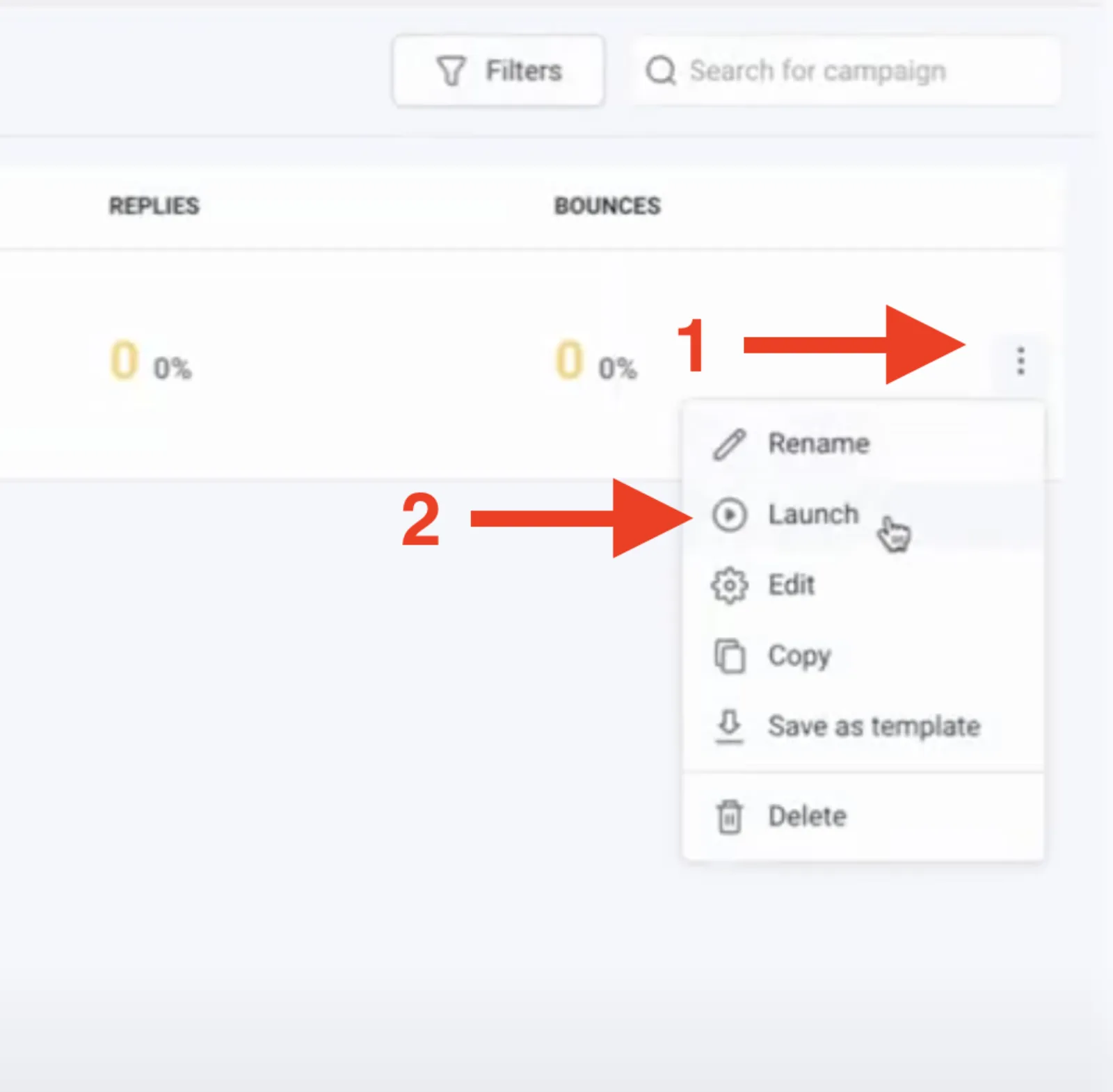
In Sequences, use Preview and Test under the email step to check each contact's background and cloned voice. Then launch from the three-dot menu in All campaigns.
What teams do with Sendspark and Snov.io
A single video greets each Snov.io prospect
Personalize the video header, message and thumbnail with placeholders, click Share Video, choose Snov.io Email and paste into a Snov.io email draft. If you customized the thumbnail, the personalization shows in Snov.io's preview.
Read the guideWhat Snov.io data personalizes each video
- email2 must match the custom field exactly: lowercase, Text type. Without it, Snov.io can't connect a prospect to their video.
- Placeholders pull each contact's first name, company name and job title into the video page and thumbnail.
- Dynamic campaigns add the prospect's website as the background and, with voice cloning, their name in your voice.
Where you see who watched from Snov.io
Sendspark analytics and Team Insights track each Snov.io prospect's views and clicks.
Explore Video AnalyticsSendspark and Snov.io: frequently asked questions
Does Sendspark integrate with Snov.io?
Yes. You paste Sendspark's Snov.io Email snippet into a campaign email step and upload the matching prospects; nothing syncs back to Snov.io.
What is the email2 field for in Snov.io?
Snov.io needs a unique email field to connect with Sendspark. Duplicate your email column as email2, add a matching custom field and map both on import, so each prospect gets their own video.
How do I check the videos before launching a Snov.io campaign?
Go to Sequences, open the email step and use Preview and Test to review each contact's personalized background and voice.
Updated


Make your next outreach personal.
Record one video and let Sendspark do the rest.