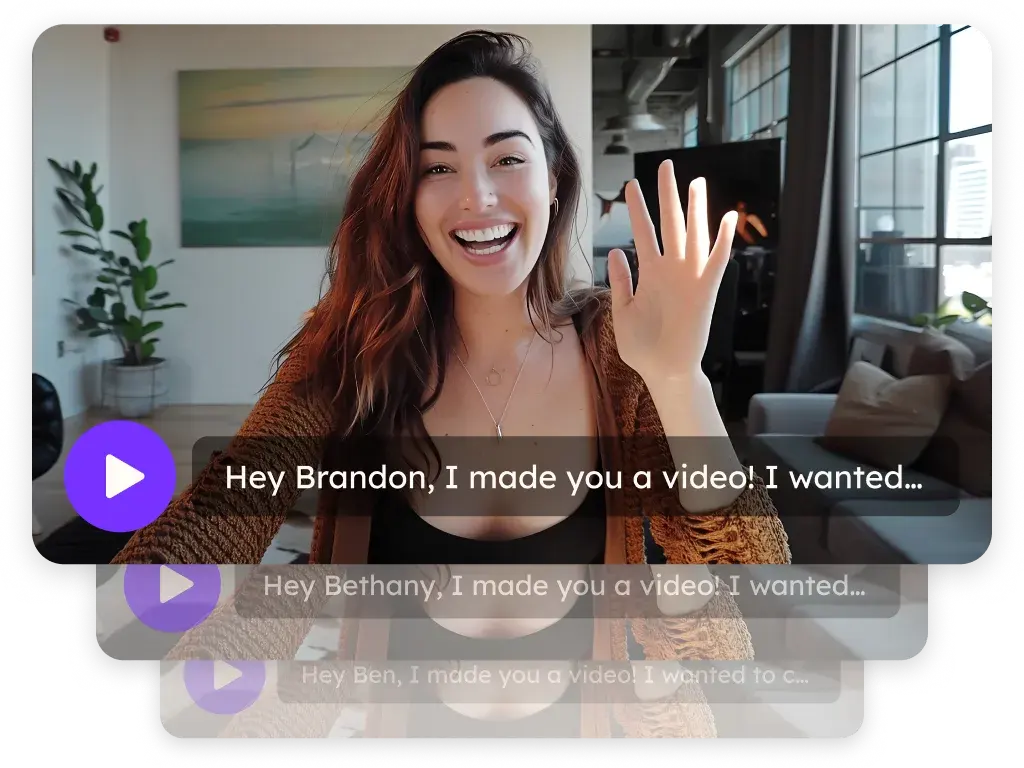
Sendspark Salesforge integration for AI personalized video emails
The Sendspark Salesforge integration adds an AI personalized video to a Salesforge sequence with a SendSpark video button, and Sendspark generates each prospect's video when you launch. Sendspark is an AI personalized video platform for B2B sales and marketing teams. Outbound teams connect it once in Salesforge's Integrations settings with a Sendspark API key, secret key and Workspace ID.
 SOC 2 Type II
- Read reviews on G2


Sendspark and Salesforge at a glance
- Integration type
- Import source (native Salesforge integration)
- How data moves
- Sequence contacts go from Salesforge to your Sendspark Dynamic Video campaign at launch; Salesforge inserts each video with the {{sendspark_video}} variable.
- Plan
- Growth and above
- What you need
- A Salesforge account, a Sendspark Dynamic Video campaign, and your Sendspark API key, secret key and Workspace ID.
- On Salesforge's side
- Sendspark on Salesforge Integrations
Every sequence step reads like the one before it
Your sequences are tuned and your mailboxes are warm, but prospects can't tell your email from the dozen others they got today. Making a video per prospect would stall the whole campaign.
How to use Sendspark with Salesforge
- 1
Open Integrations in Salesforge
Go to Salesforge's settings menu, click Integrations, and scroll to Sendspark.
- 2
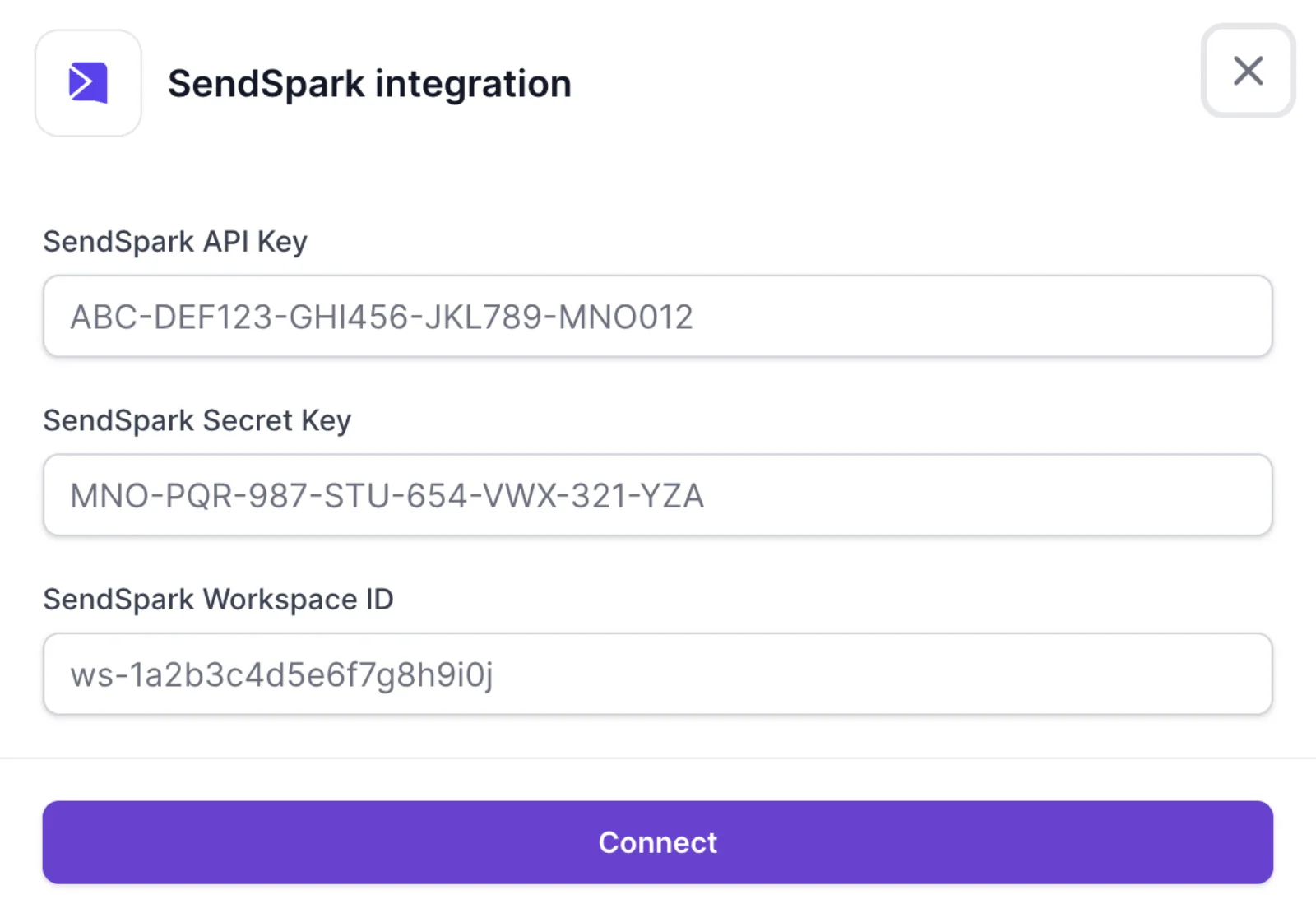
Connect with your Sendspark credentials
Click Connect and enter your SendSpark API Key, Secret Key and Workspace ID. All three are on Sendspark's Settings, API Credentials page.
- 3
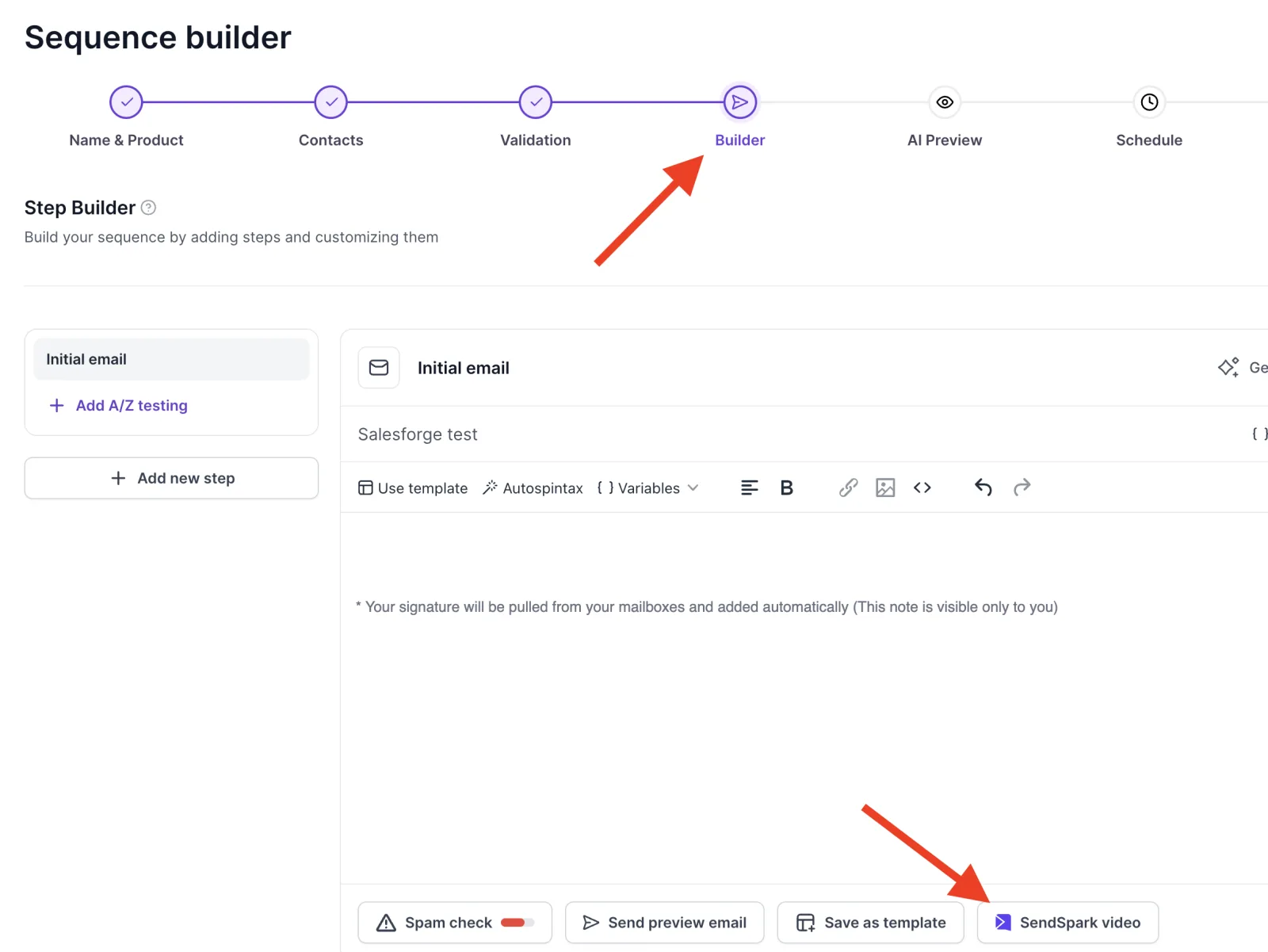
Add the video in the sequence Builder
Create a sequence and, at the Builder step, click the SendSpark video button at the bottom of the email editor.
- 4
Pick your campaign
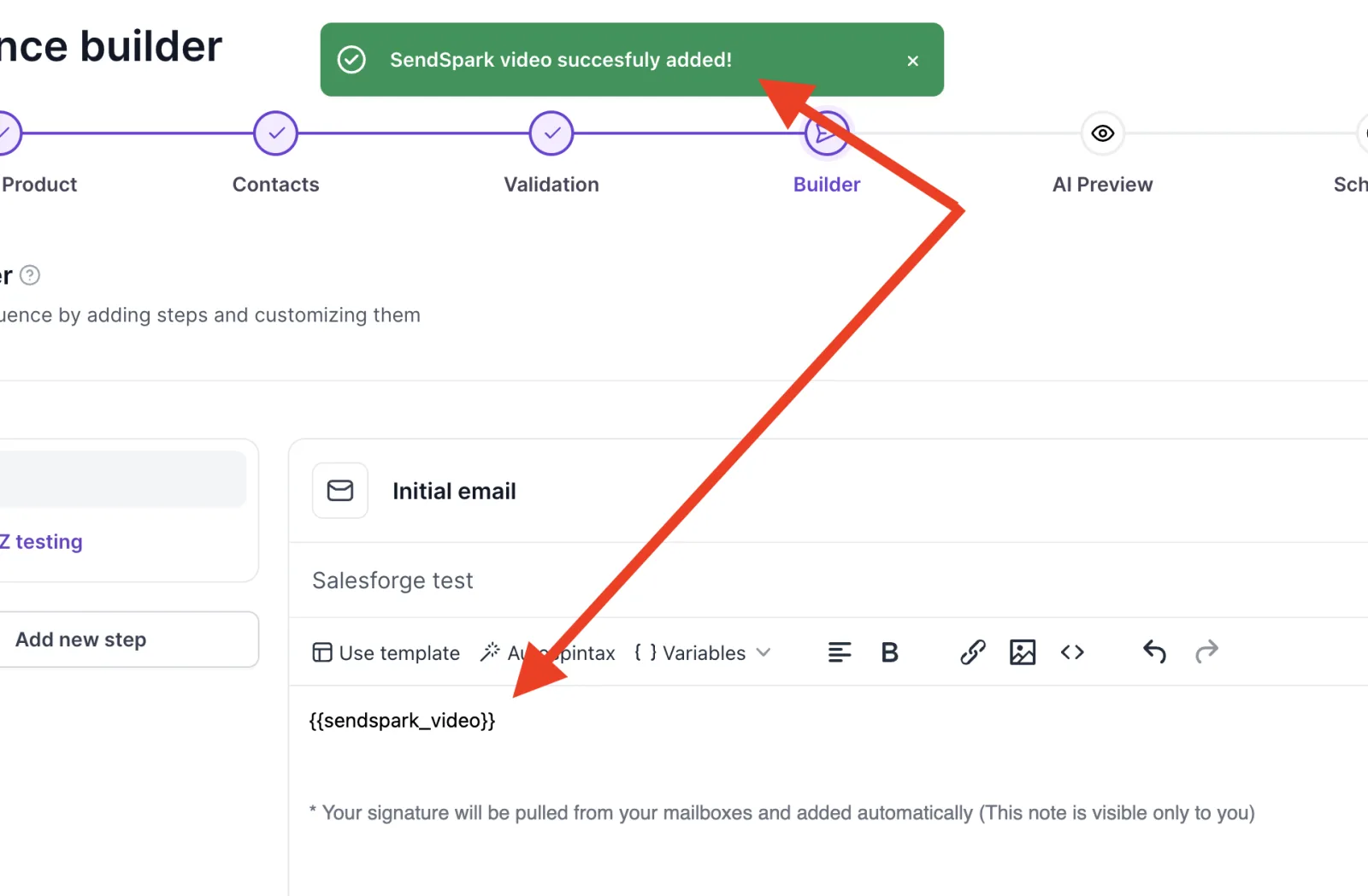
Choose your dynamic video campaign by name and click Add Video. Salesforge confirms it and inserts the {{sendspark_video}} variable.
- 5
Launch to generate
Click Continue, then Launch sequence. Videos start generating in your Sendspark campaign for each contact.
What teams do with Sendspark and Salesforge
A personal video in the first touch
Place {{sendspark_video}} in your initial email so the opener carries a video that says the prospect's name in your voice.
Read the guideOne connection, every sequence
Connect once in Integrations, then add the SendSpark video button to any new sequence's Builder step and pick a different campaign per audience.
Read the guideWhat Salesforge data personalizes each video
- {{sendspark_video}} is placed automatically where you add the video; move it within the email as you like.
- Your Sendspark campaign's voice cloning, dynamic background and landing page settings apply to every contact the sequence sends.
- Videos generate when you launch, not when you add the button.
Where you see who watched from Salesforge
Video views, watch time, CTA clicks and likes are tracked in Sendspark's analytics.
Explore Video AnalyticsSendspark and Salesforge: frequently asked questions
Does Sendspark integrate with Salesforge?
Yes. Salesforge has a native Sendspark integration in its Integrations settings, and a SendSpark video button in the sequence Builder.
What credentials does Salesforge ask for?
Your Sendspark API key, secret key and Workspace ID, all from Sendspark's API Credentials page.
When are the videos created?
When you click Launch sequence. Videos then start generating in your Sendspark Dynamic Video campaign.
What is the {{sendspark_video}} variable?
It's the placeholder Salesforge adds when you attach a campaign. Each recipient sees their own video in its place.
Updated


Make your next outreach personal.
Record one video and let Sendspark do the rest.